Quick Start Guide: ProCall Mobile
| State of knowledge | July 2026 |
|---|---|
| Product relevance | estos ProCall Mobile for Android estos ProCall 8 Enterprise Server |
Connected to ProCall whilst on the move
This quick guide explains the key features of estos ProCall Mobile for iOS and Android, and how to use them on smartphones and tablets.

ProCall Mobile versions
The range of functions depends on the underlying version of ProCall Enterprise.
With ProCall Mobile, you can access and use contacts, communication features and devices from your ProCall Enterprise environment on your smartphone or tablet whilst on the move.
Supported smartphone operating systems
estos ProCall Mobile is available for the Android and Apple iOS smartphone operating systems and can be downloaded from the Apple App Store or Google Play:
| ProCall Mobile for iOS | ProCall Mobile for Android |
|---|---|


In general, the following rules apply regarding supported smartphone operating system versions:
- ProCall Mobile for iOS is supported on the current version of iOS and the previous major version.
- ProCall Mobile for Android is supported on the current version of Android and the two previous major versions.
For details of which operating system versions are supported, please refer to the system requirements for the version of ProCall Enterprise you are using.
The supported smartphone operating system versions can be found at ProCall 8 Enterprise System Requirements – Android and ProCall 8 Enterprise System Requirements – iOS.
App permissions

App permissions
In order to carry out communication tasks or display contacts, ProCall Mobile requires access to, for example, the camera, contacts, microphone, phone and storage.
Login
The login process depends on the infrastructure used and your organisation’s settings.
To log in and authenticate, you will need
- ProCall Enterprise login details (username, password)
- the address of the UCServer (UCServer Web Service URL),
- or your UCConnect ID

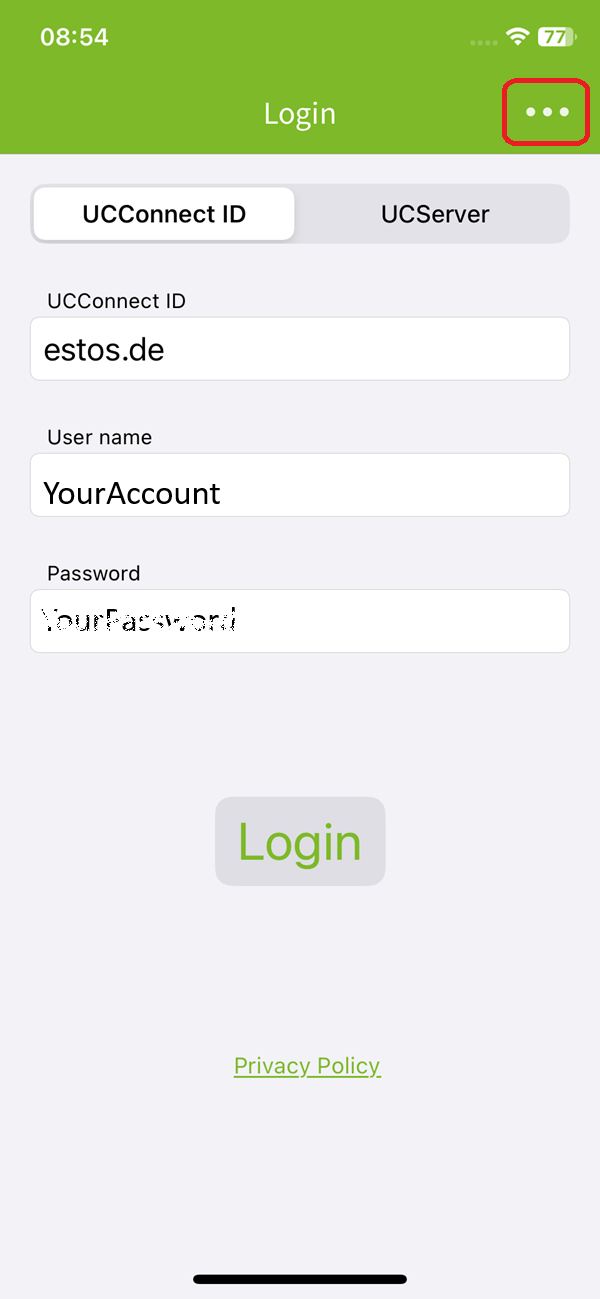
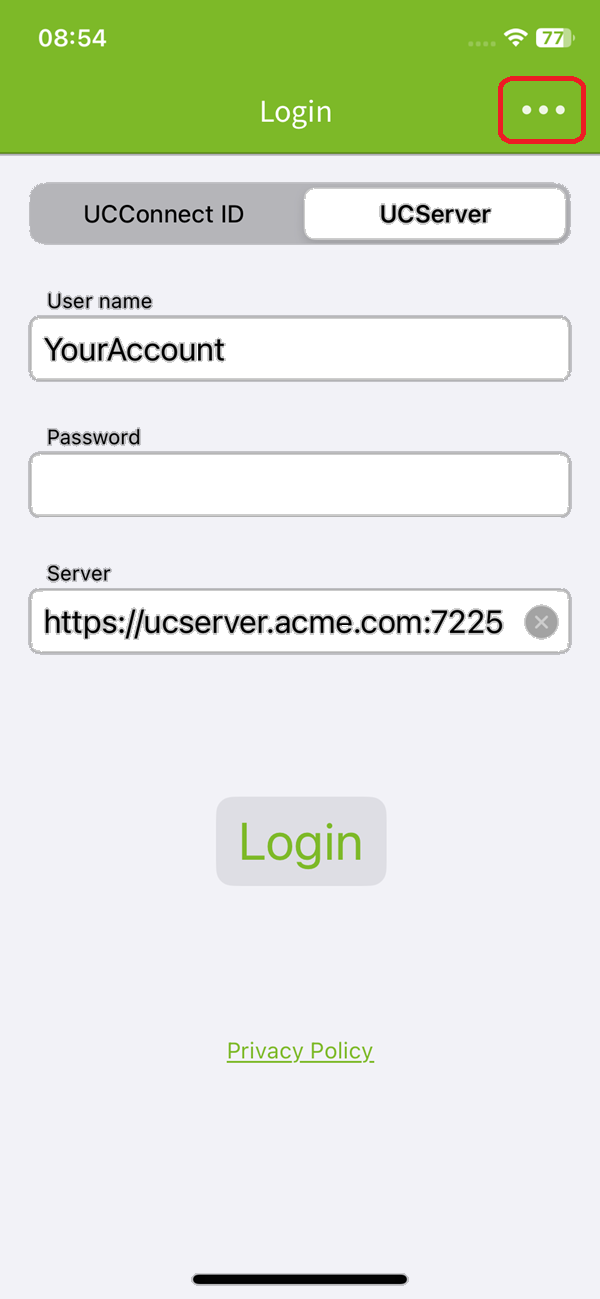
When logging in, select either ‘UCConnect ID’ or ‘UCServer’, depending on the information you have been given.
Example screenshots: ProCall Mobile registration/login using the UCConnect ID or the UCServer address
Information on first-time registration
Once you have logged in, first open the "Me" section, There you can set up your presence status, notifications and call routing., Dort können Sie Präsenzstatus, Benachrichtigungen und Leitungen einrichten.
Select language
ProCall Mobile supports several languages.
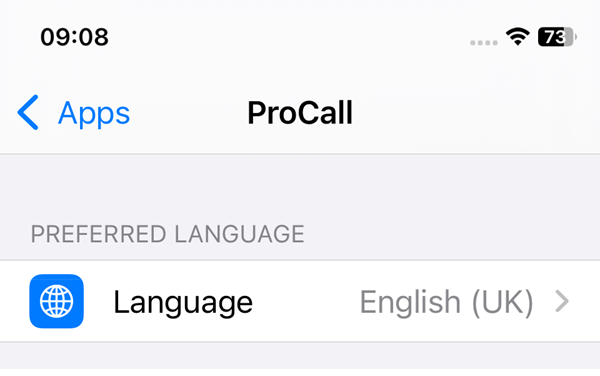
By default, the app uses the language setting on your smartphone or tablet. Alternatively, you can set a different language for the app.
Example screenshot: Setting the language in ProCall Mobile
Don’t miss a thing: notifications
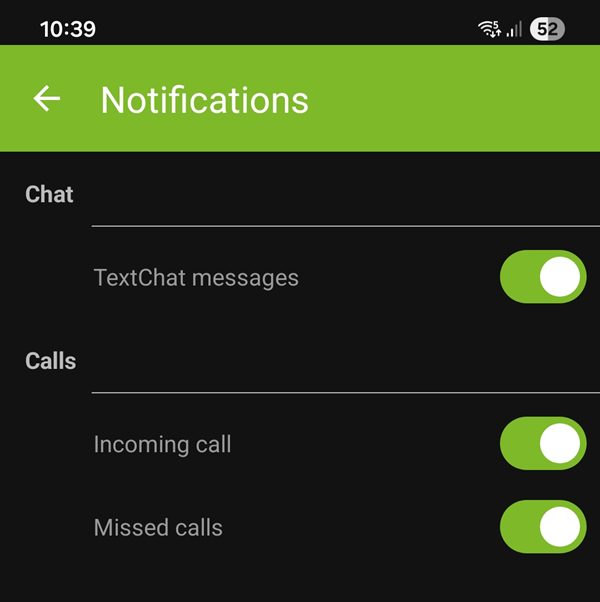
You can enable or disable push notifications for the following events:
- new chats
- incoming calls
- missed calls
You can find the settings in the "Me" section.
Example screenshot of ProCall Mobile – settings in the ‘Me’ section: Notifications
Example screenshot – Notification in ProCall Mobile
Notifications
Notifications can only be sent if you have agreed to the ‘push’ policy.
This may need to be done by an administrator.
Contact
Edit contact
- Add contact / delete
- Add to favourites / Remove from favourites
- Change group membership
- Contact Assign to multiple groups
- Change permissions
- Send contact details send
- Import contact details into your smartphone's address book
Create/rename groups
via ProCall Desktop for Windows
Recent contacts
Contacts you have recently communicated with
Contact details
Contact details or the results of a search provide you with further information about the contact, such as
- Address details
- Telephone numbers
- Upcoming events
- Email address
- IM address
- Data source
- Group allocation
- Authorisation level
Search a contact
- in all available contact databases
- Search results sorted by data source
Add a contact
- Search in data sources
- enter manually
- Send authorisation request (Federation)
Presence status of your contacts

Each user can change their presence status manually, or it can be determined according to defined rules, for example via telephony services or calendar entries.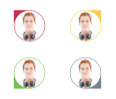
 Available
 Busy/on the phone/in a meeting
 Absent (online)
 Do not disturb
  Inactive
 Away (Offline)
Information about the line / Line display
 Line clear
 Call forwarding active
 Call protection enabled
Further information on how to get in touch

 Logged in via the ProCall Mobile app
 Information on appointments/calendar entries
 Status information
 Federation contact
Communication actions
The available options depend on the lines/devices available, presence status and permissions.
- Text chat
- AudioChat
- Video chat
- Cable / Select device
- Using a softphone
- Start call (via standard line)
- Use the keypad / DTMF dialling (enter the number manually)
Chats
Here you can view the chat history and start a text chat with your contacts.
You can start a chat either via the contact details, the journal or via chats.
As well as plain text messages, you can also use emojis 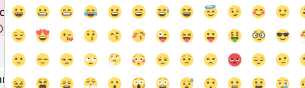 here and share content – send files (select what you want to send using the paperclip icon 📎).
Delivery status
 Message was sent
 Message was delivered
 Message has been read / opened
Further activities
- Start a Group Chat (TextChat with multiple participants)
- View contact details
- Share content: Send documents/photos/videos in the chat
- Reply / Forward
- Save as...
- Search for chats containing specific text
Calls
- Overview of your communication campaigns
- Audio Chats
- Video chats
- Phone calls
- Interlocutor
An overview of your communication activities
- Inbound/Outbound
- External/Internal
- Successful/Failed
- Date and time
- Connection duration/call duration
From the call history
- Mark entry as edited/unedited
- Open contact details
- Select Communication type and start
- Delete journal entry
- Dial number/Show keypad (DTMF)
- Filter listings by Show all / Unedited
- Mark all as completed

'Me' section
- Mark as present, Clear presence status
- Use presence profiles (set up in estos ProCall Desktop for Windows)
- Add a note, Delete a note
- Manage lines
- Manage notifications
- Send feedback to the manufacturer (log file)
- Certificates
- Licence Information
- Version of estos ProCall Mobile and ProCall UCServer
- Exit app/Log out
Change presence status
Your presence status is determined according to defined rules – for example, via telephony services or upcoming appointments – or can be set manually by you. Your contacts can see your presence status and your note (depending on the permissions granted).
Notes
You can set a note / out-of-office message to provide a comment on your attendance status.
Notiz aktualisieren
If you change your presence status, please ensure you delete or update any out-of-office message you have set accordingly.
Manage your lines
- Define Standard Line
- Set/remove call forwarding
- Call blocking (Do Not Disturb) on/off
- Remote Office on/off
- Rename Smartphone line
Communicate
Communication window
Incoming
Outgoing
Start call
Using a softphone
Start AudioChat
Start VideoChat
End call
Customise
- Android Gesprächsfenster vs. ProCall Mobile In-App Gesprächsfenster (for Android devices only)
- ProCall Mobile App: Hinweise zum Android Anrufkonto(recommended, for Android devices only)
- Delete call log via device settings
Communication activity
- depending on the configuration, device options and permissions
- Start with the set default line
- Other cables / devices available
Start communication
- from the call history/journal
- from the Contacts
Further settings
- Microphone on/off (mute)
- Speaker on/off “Hands-free”
- Rotate the camera
Good to know
Available options
Verfügbare Optionen
The options available to you depend on the configuration and your permission:
- lines
- devices
- communication actions
Audio/Video chat
- with an internal or federated contact
- Participants must have the appropriate technical equipment to hand (e.g. headset, camera, microphone)
- Prerequisite: Authorisation to use audio/video
Softphone functions
- The range of functions depends on the features supported by the telephone system
- Prerequisite: Authorisation to use a softphone / an allocated line
Control a desk phone
- Manage the line assigned to a desk phone (‘system phone’, ‘workstation phone’) and the user (depending on the features supported by the telephone system).
- A communication device is not a mobile device, but rather a telephone connected to the telephone system, such as a desk phone or a handset.
- Notification of incoming calls when the mobile device is unlocked and estos ProCall Mobile is open and running in the foreground.
- Prerequisite: an allocated line
Prerequisites for successful connections
Active login and connection to UCConnect or UCServer (LAN, Wi-Fi, internet)
Hinweis
The availability of features depends, amongst other things, on the system environment, configuration, ProCall Enterprise version, device options and the permissions granted.
Further information
Taking a screenshot from the ProCall Mobile app for Android