Warning message when saving location settings
| Last updated | January 2026 |
|---|---|
| Product relevance | estos ProCall 8 Enterprise |
Observation
Warning message for location settings
If location settings are made that could lead to internal processing problems in estos ProCall Enterprise, a warning message will be displayed:

Warning before saving location settings
estos UCServer Verwaltung
Please specify a range for the extension numbers. If a special extension is not available, enter the full numeric range of the internal extensions. For a three-digit range, the numbers 100-999 must bei entered.
Will you save the incorrect settings? These settings can be corrected automatically.
Example screenshot of the warning message in UCServer Administration - Apply incorrect settings, return to settings or have them corrected automatically
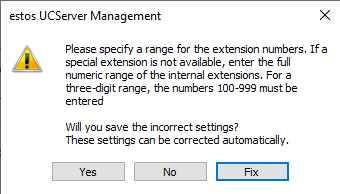
Options - What happens when you click on the buttons?
- Yes
This will apply the incorrect settings. *** - No
Returns to the location input dialogue box to allow for independent correction. - Fix
The UCServer administration attempts to correct the incorrect entries independently.

*** Please ignore the warning message by clicking the Yes only in special cases button.
In most cases of ProCall Enterprise installation, incorrectly stored location settings lead to unexpected software malfunction.If you deviate from the recommendations described here for technical reasons, check the system behaviour very carefully.
Identify possible cause: Incorrect location configuration
Possible implications due to incorrect location configuration
Number formatting in UCServer administration
A clear indication of an incorrect location configuration is the inconsistent listing of telephone numbers in the list under Telephony - Lines in the UCServer administration:
Example screenshot UCServer Administration: Telephony - Lines - Phone numbers are displayed inconsistently, indicating an incorrect location configuration.
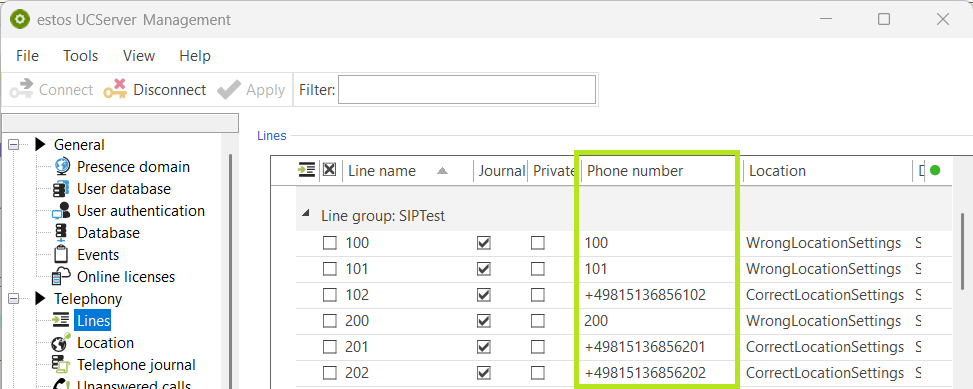
The column Phone number contains both extension numbers and complete supercanonically formatted phone numbers.

estos generally recommends configuring telephone numbers in supercanonical format (for further information, see Line numbers).
In this case, please check the location settings assigned to the respective lines and correct the location settings so that the phone numbers reported by the line driver correspond to the phone number range in the location.
In addition, lines can be assigned an individual location or the telephone number can be manually assigned to the line.
Display of lines in ProCall Desktop for Windows
As mentioned, in rare, technically related cases, a different configuration may be necessary.
However, the line keys should normally always display the abbreviated extension number.
In the following example, a user has been assigned a line that ProCall Desktop for Windows cannot shorten due to location rules: While one line is correctly displayed as 201, the other appears in full as +49 (8151) 3695665:
Example screenshot ProCall Desktop: User lines – unabbreviated phone number display for one line
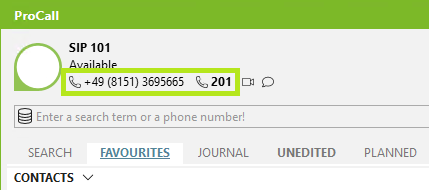
In this case, please first check the line list in UCServer Administration (see above) to ensure that the telephone numbers are correctly maintained in supercanonical format.
Name resolution in ProCall Desktop for Windows
If telephone numbers in the UCServer administration line list are not maintained consistently in a super-canonical manner, or if the location settings assigned to the lines are configured incorrectly, problems may arise with caller identification or name resolution for the call partner.
Phone numbers reported to the client by the UCServer are internally shortened to the extension in ProCall Desktop for Windows, and the search is no longer based on the supercanonically formatted phone number, but only on the shortened number. This can then lead to incorrect name resolution, ambiguous hits or failed name resolution.
Solution / Procedure
Correct location configuration
General information on location configuration can be found in the estos documentation. The documentation for estos ProCall 8 Enterprise contains specific information on setting up a location in the section Location.
Checking the configuration
If you see any warning messages, check the behaviour and display when you press the "Fix" button for correcting location settings.
If necessary, switch between the setting variants (specifying an extension prefix or an extension number range). If lines are connected to the UCServer via different interfaces or line groups (e.g. TAPI or SIP), it is advisable to create separate locations for the respective interfaces in order to optimally adjust the configuration.
Please also consider the possibility of Check rules at location:
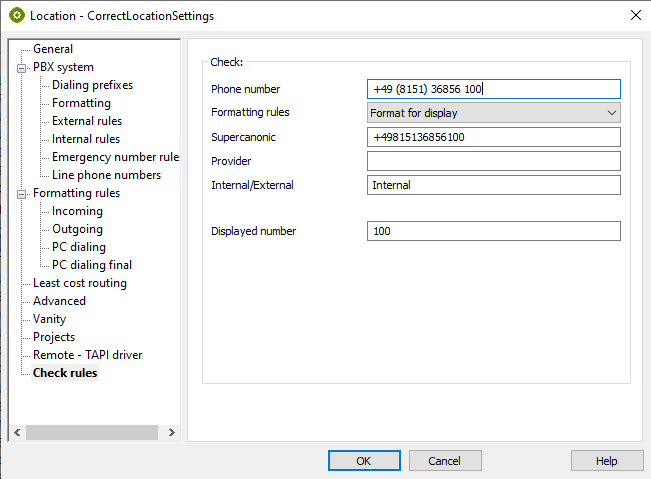
Further information
- Location settings - Advanced configuration
- Automatically assign locations to lines in UCServer
- Phone numbers in the call window are not formatted correctly or names are not resolved
- When making calls, an international dialling code is placed before the actual telephone number.
- Automatic line assignment does not work
- Softphone functions (SIP) Assign phone numbers