estos ProCall Enterprise client log files
| Update status | Oktober 2026 |
|---|---|
| Product relevance | ProCall 8 Enterprise ProCall Desktop for Windows |
Logging of the estos ProCall Desktop for Windows
The respective modules of estos ProCall Desktop for Windows log errors, warnings, information or debug details at the respective log levels.
Select debug level
With a few exceptions, these modules take into account the logging levels
- Error (error only)
- Warnings (errors and warnings)
- Informational (errors, warnings and information)
- Debug (all)
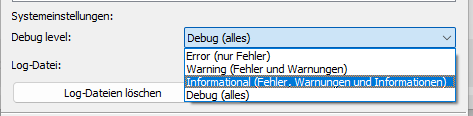
You can select the desired logging level via the Expert view:
Example screenshot: ProCall Desktop for Windows - About ProCall - Expert view - System settings - Debug level
Where is the log level stored?
Microsoft Windows Registry Key ClientLogLevel
The selected logging level is saved in the Microsoft Windows Registry:
| Microsoft Windows Registry Key | Registry entry | Type of registry entry | Value of the registry entry |
|---|---|---|---|
HKEY_CURRENT_USER\Software\ESTOS\UCServer4\CtiMain | ClientLogLevel | DWORD | 1 = Error (error only) |
| 2 = Warnings (errors and warnings) | |||
| 3 = Information (errors, warnings and information) | |||
| 4 = Debug (all) |
The entries in the log files show the severity by means of a numerical code directly after the date and logging time:
Example excerpt from the log file ProCall_YYYY_MM_DD_HH_MM.txt
Fehler = 1:
01.04.2024 12:05:01:101;1;mainthread-18864;Estos.Client.WindowsStoreConnector.WindowsStoreConnector.ECtiClientDatabaseLib-ICOMDatabaseAppointmentBase-AttachAppointmentNotify;Could not AppointmentManager.RequestStoreAsync

Warnung = 2:
01.04.2024 12:05:02:202;2;mainthread-18864;CECtiClientApp::InitInstance;No DATEV installation found.

Information = 4:
01.04.2024 13:06:03:303;4;mainthread-18864;EAVClientCall::OnAVConnectWithStoppedSound;(BE52) OnAVConnect - UC Capabilities: "HOLD, BTRANS, CTRANS"

Debuginformation = 32:
01.04.2024 13:06:04:404;32;mainthread-18864;EAVMediaStats::FlushReports;(BE52) WebRTC Received Status Report DataIf a support instance requests analysis materials at debug level, the log file entries can be used to quickly verify whether the log files were actually recorded at this required logging level. This is exactly when entries with the key figure 32 are found directly after the date and time.
Provide log files
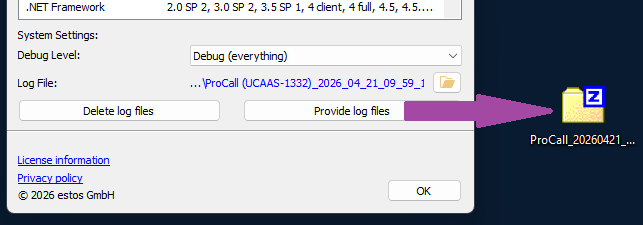
The Provide log files button in the expert view on ProCall Desktop for Windows provides the log files created and available up to the current time in a ZIP archive at a location to be selected by the user.
By default, the Windows desktop is suggested as the storage location.
Example screenshot: ProCall Desktop for Windows – About ProCall – Expert view – Provide log files
You can use the following list of log files in this data archive to check whether all relevant data is present.

List of log file(s)
| Name of the log file(s) | Source | Purpose | Notes |
|---|---|---|---|
AVDevices_x.txt | estos ProCall Desktop for Windows | Logging of the headset interface (HID communication) x follows the formatting scheme YYYY_MM_DD_HH_MM_SS_MS x follows the formatting scheme YYYY_MM_DD_HH_MM | From version 8.9.3 onwards, the file name also includes the second and millisecond of the creation time. |
AvDevicesAdditional.txt | estos ProCall Desktop for Windows | Additional log output from the EPOS Connect Sennheiser SDK when faults occur in connection with this interface | |
clninst_roseout_x.log | estos ProCall workstation settings | ASN.1 Communication protocol with the UCServer x follows the formatting scheme YYYYMMDD | |
DATEV SDD_x.txt | estos ProCall Desktop for Windows | Logging of operations in connection with the DATEV master data service | |
EProvidr_x.txt | estos ProCall Desktop for Windows | Logging of operations in connection with HCL Notes (former IBM Notes/Domino) x follows the formatting scheme YYYY_MM_DD | |
OutlookAddIn_x.txt | estos ProCall Desktop for Windows | Logging the operations of ProCall Desktop for Windows client interface for Microsoft Outlook x follows the formatting scheme YYYY_MM_DD | |
ProCall_x.txt | estos ProCall Desktop for Windows | Logging the operations of ProCall Desktop for Windows client core modules x follows the formatting scheme YYYY_MM_DD_HH_MM_SS_MS x follows the formatting scheme YYYY_MM_DD_HH_MM | From version 8.9.3 onwards, the file name also includes the second and millisecond of the creation time. |
ProCallClnInst_x.txt | estos ProCall workstation settings | x follows the formatting scheme YYYY_MM_DD_HH_MM_SS_MS x follows the formatting scheme YYYY_MM_DD_HH_MM | From version 8.9.3 onwards, the file name also includes the second and millisecond of the creation time. |
ProCallEOConnector_x.txt | estos ProCall Desktop for Windows | Logging the operations of the ProCall Enterprise client interface for Microsoft Outlook x follows the formatting scheme YYYY_MM_DD | From version 8.9.3 onwards, the file name also includes the second and millisecond of the creation time. |
ProCallEOConnectorx64_x.txt | estos ProCall Desktop for Windows | Logging the operations of the ProCall Enterprise client interface for Microsoft Outlook x folgt dem Formatierungsschema YYYY_MM_DD_HH_MM_SS_MS x folgt dem Formatierungsschema YYYY_MM_DD_HH_MM | From version 8.9.3 onwards, the file name also includes the second and millisecond of the creation time. |
roseout_x.log | estos ProCall Desktop for Windows | ASN.1 Communication protocol with the UCServer x follows the formatting scheme YYYYMMDD | These log files are only written at the logging level Debug (all) . |
roseout_meetingsaddin_x.txt | estos ProCall Desktop for Windows | Logging of operations with regard to information synchronization with estos ProCall Meetings x follows the formatting scheme YYYY_MM_DD | |
WebRTCTrace_x.txt | estos ProCall Desktop for Windows | Logging of the WebRTC protocol stack (audio/video usage, ICE communication, streaming, quality information). CAUTION: Written at DEBUG level only! x folgt dem Formatierungsschema YYYY_MM_DD_HH_MM_SS_MS x folgt dem Formatierungsschema YYYY_MM_DD_HH_MM | |
.sentry (folder) | Sentry Application Monitoring Software | With the introduction of Sentry Application Monitoring Software in estos ProCall 8 Enterprise (see Release Notes for estos ProCall Enterprise (Core) 8.7.1.10442), this folder, including files and subfolders, is created and managed in the log file folder. | |
| |||
ProcessInfo.log | estos ProCall Desktop for Windows | Information about the system environment of the Microsoft Windows user session | |
SystemInfo.log | estos ProCall Desktop for Windows | Information about the ProCall Enterprise client: configuration, interfaces, audio/video devices, assigned lines... | |
 The following two files are only created when the logs are provided in the ZIP archive, so they are not included in the log directory itself.
Where can I find the log files? / Where are the log files stored? / Storage location
Unless the directory for the log files has been changed by special measures, the storage location of the log files in estos ProCall Desktop for WIndows is set in the installation standard to storage location
- in ProCall 8 Enterprise:
%localappdata%\estos\ProCall 8\logs - in ProCall 7 Enterprise (End-of-Life):
%localappdata%\estos\ProCall 7\logs
List of log files for the chat app in ProCall Desktop for Windows
The ZIP archive downloaded from the Chat App in ProCall Desktop for Windows ProCall 8 Enterprise Client Chat App Logging contains all available log files from the Chat App in ProCall Desktop for Windows. This ZIP archive follows the naming convention EUCWebApp-logs-YYYY-MM-DD_HH-MM-SS.zip, where the timestamp YYYY-MM-DD_HH-MM-SS corresponds to the time at which the log files were downloaded in the chat app.
| Name of the logfile(s) | Source | Purpose | Notes |
|---|---|---|---|
YYYY-MM-DD_HH-MM-SS_log_x.txt | Chat App in estos ProCall Desktop for Windows | Logging chat app operations in ProCall Desktop for Windows | Das ZIP-Archiv enhält sämtliche verfügbare Chat App-Logs, wobei die Logdateien dem Formatierungsschema YYYY-MM-DD_HH-MM-SS_log_x folgen, bspw. 2026-10-12_08-32-54_log_5.txt. The timestamp YYYY-MM-DD_HH-MM-SS corresponds to the time at which the log files were recorded (downloaded) in the chat app. The index x starts at 0. The most recent log entries can be found in the log file with the highest index, |
Logging of estos Automatic Client Update Service
If it is necessary to analyse a problem relating to the estos Automatic Client Update Service , the following log files are also relevant:
| Name of the logfile(s) | Source | Purpose |
|---|---|---|
eacusrv_roseout.log | estos Automatic Client Update Service | ASN.1 protocol for communication between the estos Automatic Client Update service and the ProCall Enterprise Update Server |
EACUSrv_x.txt | estos Automatic Client Update Service | Logging of ProCall Desktop for Windows update activities x follows the formatting scheme for sequential numbering, starting with 0 (0 corresponds to the most recent log file) |
msilog.txt | estos Automatic Client Update Service | Installation logs for update installations |
Where to find the log files
You can find the log files for the Automatic Client Update Service at:
%ProgramData%\ESTOS\EACU