Recording the audio stream received during a ProCall call
| Update status | August 2026 |
|---|---|
| Product relevance | estos ProCall Desktop for Windows estos ProCall 8 Enterprise |
How do I make a recording of the received audio data?
The audio stream received during a SIP call or audio chat using ProCall Desktop for Windows – the audio data received from the other party – is to be recorded.
Forward to Voicemeeter Banana, start recording
To do this, route the audio data first through the Voicemeeter Banana mixing desk.
Next, use the built-in recorder in Voicemeeter Banana to record the conversation .
Playback of audio data
You can then play back the call you have received via a loudspeaker or a headset.
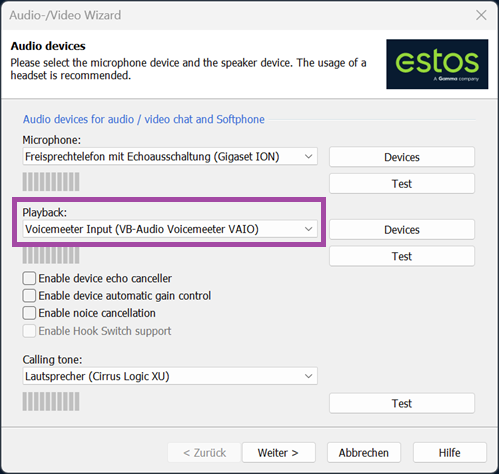
To do this, select VoiceMeeter Input (VB-Audio Voicemeeter VAIO) as the output device in the Audio/Video Wizard in ProCall Desktop for Windows.
This means that the audio output is not routed directly to your headset as usual, but is first sent to Voicemeeter Banana:
Example screenshot of ProCall Desktop for Windows – Audio/Video Wizard – Audio devices – Playback
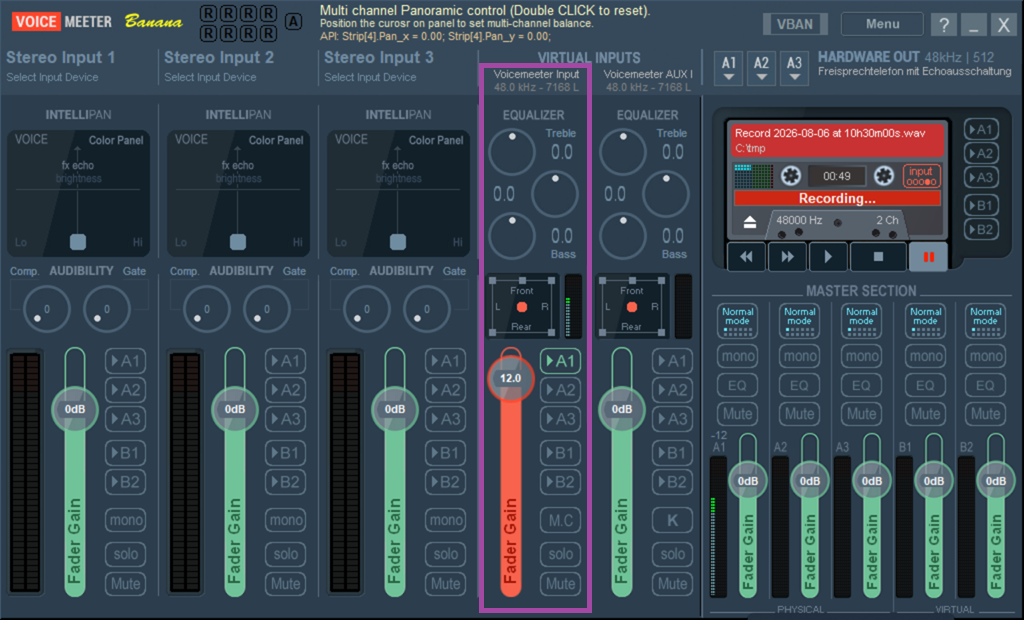
Route the audio signal from the person you are speaking to received in Voicemeeter Banana to Bus A1 in the virtual mixing desk.
This will allow you to listen in on the conversation in a later configuration step.
Example screenshot of Voicemeeter Banana Virtual Inputs – A1
If the recorder input is set to Virtual Input , the recorder can access the audio call received by ProCall Desktop for Windows directly:
Example screenshot of Voicemeeter Banana Recorder options – Virtual Input
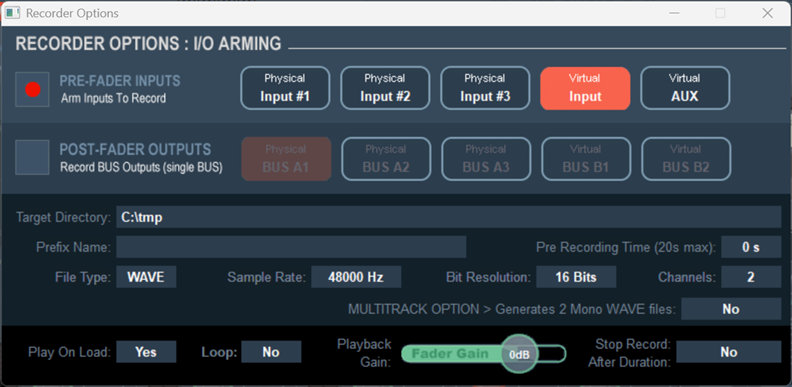
Select a save location and set the output file type
In this example, the path C:\tmp was selected as the storage path for recordings, and the output file type was set to WAVE.
To enable you to not only record the call data received by ProCall Desktop for Windows, but also listen in directly, this data was already routed to bus A1 via the Virtual Input in a previous step.
Select a printer
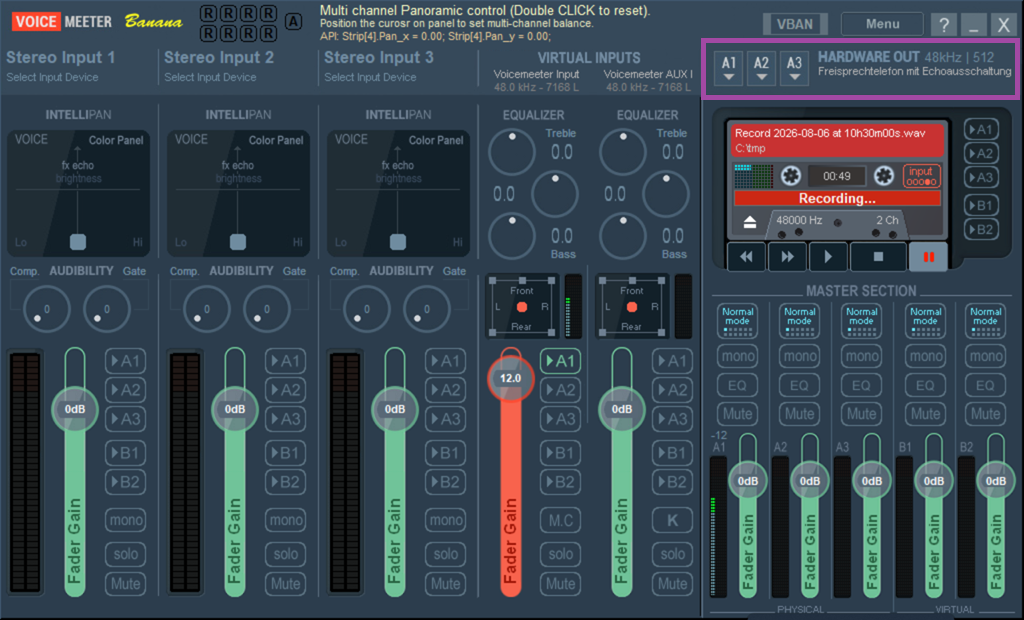
Now select an output device for VoiceMeeter HARDWARE OUT that is not already in use by ProCall Desktop for Windows.
In this example, HARDWARE OUT is routed to an additional hands-free telephone.
Example screenshot of Voicemeeter Banana Hardware Out
You can now switch the recorder on, off or pause it during a call to record the audio stream received from the person you are speaking to:
Beispiel Screenshot Voicemeeter Banana - Recording
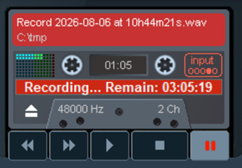
In this example, the audio recording file is saved to C:\tmp\Record 2026-08-06 at 10h44m21s.wav.
The following applies: estos Guidelines for the Support of Third-Party Products – Interoperability Information.
Voicemeeter is subject to VB-Audio’s Terms of Use and Licence. Voicemeeter – as at August 2026 – is licensed under a donationware model.
Please be aware of any legal considerations regarding the recording of conversations.
Further information
Use the third-party tool VoiceMeeter Banana to test audio devices