No audio connection in softphone mode
| Update status | February 2026 |
|---|---|
| Product relevance | estos ProCall 8 Enterprise ProCall Desktop for Windows |
Observation
Connection to client appears successful, but no audio signal
In ProCall Desktop for Windows and ProCall Mobile, there is no audio transmission during calls via a SIP trunk or with individually registered subscriber lines: Neither incoming nor outgoing audio packets are sent or received.
Although the client indicates a successful connection, no Rx/Tx packet statistics (received packets or transmitted packets) are displayed.
Possible cause
Deviation with multiple network interfaces
If more than one network interface is available on the host running ProCall Enterprise Server, estos UC Media Server and estos UCServer SIP Gateway may claim different interfaces for themselves under certain circumstances.
This may result in
- the SIP gateway, responsible for registering the SIP line, uses the network interface X and
- the UC Media Server, responsible for transmitting the audio stream between the telephone system and ProCall Enterprise clients, uses the network interface Y .
This means that the information about the IP addresses in SIP and in SDP differ from each other.
For security reasons, this deviation usually causes SIP user agents to ignore IP or, in this case, RTP packets from supposedly unknown hosts, meaning that the user agents do not process the RTP packets any further.
In practice, this manifests itself as no-way audio.
If this cause can be ruled out, carry out a problem analysis using the introductory article: Softphone connection with no sound or poor sound quality.
Solution/procedure
Configure network interfaces appropriately
When installing and setting up estos ProCall Enterprise Server, always pay attention to the network interfaces available in the Microsoft Windows Server operating system.
As soon as more than one network interface is reported as available, configure the operation of estos UC Media Server specifically for the network interface that enables bidirectional communication with the connected telephone systems.

This interface connection is not relevant for bidirectional audio communication between estos UC Media Server and ProCall Desktop for Windows or ProCall Mobile. For this communication, the ICE protocol is always used to determine and negotiate the optimal transmission path across all available network interfaces.
Where can I see the detected network interfaces?
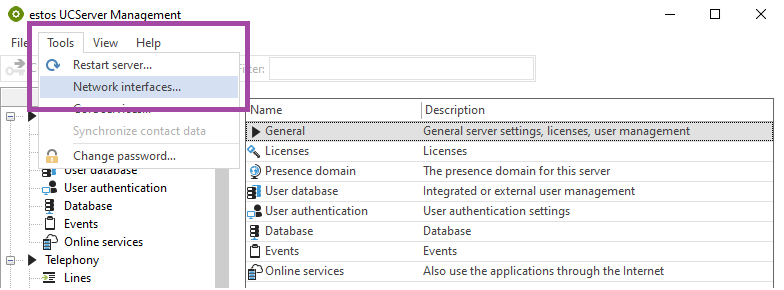
The network interfaces recognised by ProCall Enterprise Server are displayed in the UCServer Administration. To view them, select the item Extras in the toolbar and then the sub-item Network Interfaces...:
Example screenshot UCServer Administration - Tools - Network Interfaces...
Configure network interfaces
In the Dialog Configure network interfaces... , you can select the ProCall Enterprise Server interfaces for configuration:
Example screenshot UCServer Administration - Tools - Network Interfaces... - Configure - Select UC Media Server
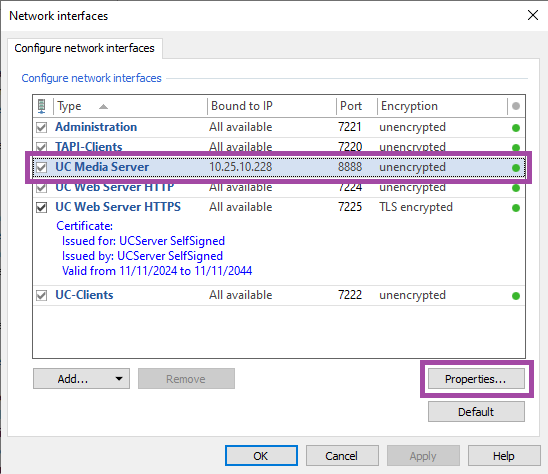
Here, select the row UC Media Server and click the button Properties... or simply double-click on the row UC Media Server.
The drop-down selection list for the IP address shows you the available network adapters.
Here, you can select the desired network interface through which estos UC Media Server can communicate with the telephone system:
Example screenshot UCServer Administration - Tools - Network Interfaces - Properties - IP Address
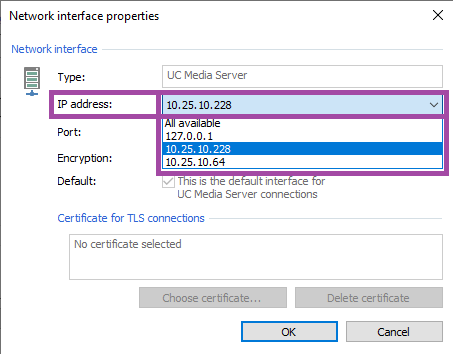
In the example shown here with two network interfaces (10.25.10.228 and 10.25.10.64, the loopback adapter does not need to be taken into account here), it is essential to deviate from the default setting All available and select a specific network interface.
In the example shown here with two network interfaces (10.25.10.228 and 10.25.10.64; the loopback adapter does not need to be taken into account here), it is essential to deviate from the default setting All available and select a specific network interface.
Apply these changes with the OK button, exit the Configure network interfaces dialogue box using the OK button, and restart the estos ProCall Enterprise server services.
Then check the desired configuration change in the UCServer administration.
Recommendation: Bind UC Media Server to a specific network interface

It is never wrong to bind estos UC Media Server to a specific network interface, even if only one network interface is available in the server operating system.
Estos therefore recommends binding the estos UC Media Server service to a dedicated network interface as a matter of principle.
Further information
- Analysis of softphone behavior
- Communication relationships in softphone and AV operation
Softphone connection with no sound or poor sound quality
- Change the port of the UC Media Server
- estos ICE-Test Tool