PBX-specific configuration: Setting up softphone functions (SIP) for Unify OpenScape Business – Connection instructions
Oktober 2023
This guide explains how to configure softphone functions (SIP) for ProCall Enterprise in conjunction with an OpenScape Business.
| ProCall Enterprise | since V 6.1 |
|---|---|
| PBX | OpenScape Business from V2 R4.0.1 |

Information on the estos test environment
Using the telephone system specified above, ProCall’s softphone functions (SIP) were tested in the estos test environment. The tests were carried out with a maximum of two lines per SIP terminal. The following details were used when setting up the telephone system for the login/registration of the individual SIP lines on the UCServer.
Note on codecs and UDP connections
To connect SIP lines to the UCServer, the telephone system must support the G.711 a-law codec for the SIP protocol and should have this set as the preferred codec for all end devices.
Only UDP connections are supported.
From ProCall Enterprise 7.5 onwards: Support for codec Opus and G.722: HD Voice / HD telephony with ProCall Enterprise SIP softphone functionality
Note on using the G.722 codec on OpenScape Business
The G.722 codec was set up by changing the codec priority on the OpenStage telephone. No configuration was carried out on the OpenScape Business PBX.

Information as at 13 September 2022:
We are unable to provide any guidance on setting up the OpenScape Business telephone system. The G.722 codec is not currently supported via the OpenScape Business telephone system over the external line; it is only supported between OpenStage telephones and, from version 7.5 onwards, ProCall Enterprise clients.
Note on using call forwarding in UCServer
If the feature Call Forwarding in UCServer is used, the SIP lines must allow a second call in order to be able to use the function Call Forwarding on Busy.
Configuring the OpenScape Business telephone system
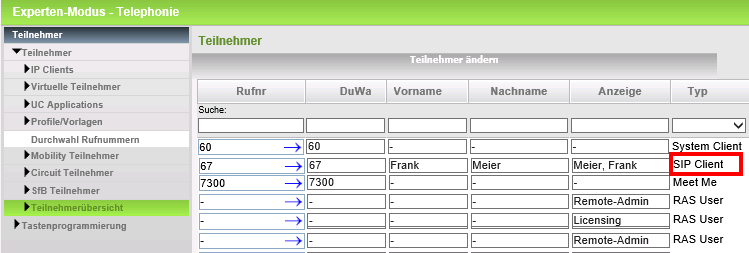
The lines to be used for ProCall must be set up as subscribers with type SIP client under the menu item Expert Mode – Telephony
Example screenshot: OpenScape Business configuration – Expert mode – Telephony – Subscribers – SIP client
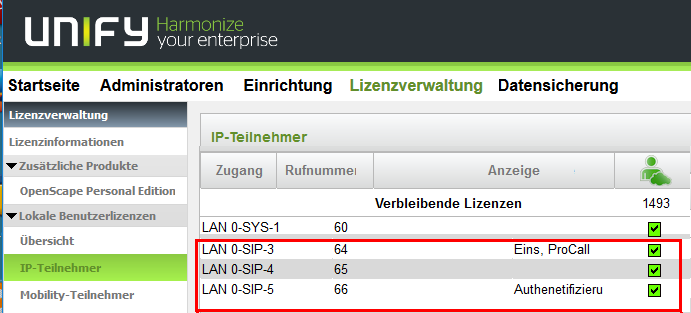
Each of the SIP lines/subscribers used for ProCall requires the activation of a licence for IP subscribers, which can be activated via the licence management system.
Example screenshot: PBX configuration – Licence management – IP subscribers
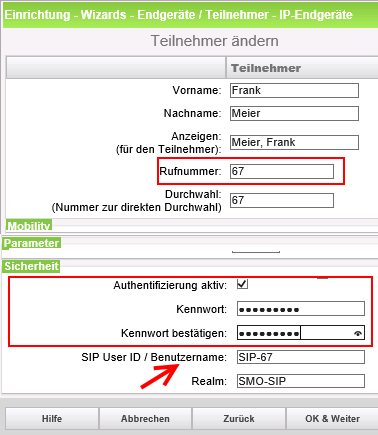
To set up the SIP line in the UCServer, you will need the following details/settings under Setup for Terminals/Subscribers – IP terminals:
| Telephone number of the subscriber | Menu: Configuration - Wizards - Devices/Subscribers - IP devices |
| SIP User ID / Username It is recommended that you enter your telephone number here. | Menu: Security |
| Optionally, authentication can be enabled and a password set. |
Example screenshot: PBX configuration – Setup – Wizards – Terminals/Users – IP terminals – Phone number and security
Configuring the UCServer
The settings are configured in the UCServer Administration under Telephony – Lines:
- Add a telephone system
Select Unify OpenScape Business . - Enter the connection to the telephone system under Softphone Registration as “SIP softphone”.
All SIP lines must be added in these connection settings. To connect to Unify OpenScape Business, the following details must be provided:
If the SIP User ID is the same as the phone number as a username the "phone number" as a password the "password"
(optional)If the SIP User ID is not the same as the phone number as a username the "phone number" as a password the "password" as the authentication username the "SIP User ID"
From ProCall 6.1 onwards, please note the following settings
In the SIP connection configuration group, you can specify what the UCServer signals to the telephone system when:
- the client is not logged in or call protection is enabled
- the call is rejected on the client or there are no devices available
The settings required depend on the telephone system and its configuration.
Example: The telephone system should divert incoming calls to the voicemail if the ProCall Client is not logged in.
Problem: The telephone system does not recognise the busy here (486) signal, which is sent by the UCServer by default, and calls are not diverted.
Possible solution: Configure this setting in the telephone system as Unavailable to subscribers, and select Temporarily Unavailable (480) for signalling on the UCServer.

Restriction on the telephone system
Please note that the telephone system does not support having multiple SIP user agents registered to a single SIP extension.
For example: the UCServer with IP address 192.168.1.1 and port 50000 is registered to extensions 100–200 on the telephone system. Now, any other SIP terminal is registered on extension 100. This results in all registrations for the IP address 192.168.1.1 on port 50000 being terminated. In this case, the UCServer would lose control of extensions 100–200. If any calls were in progress, they would be disconnected.
Depending on the set and negotiated re-registration time, the problem may escalate repeatedly because the SIP terminal described above and the UCServer keep re-registering and deleting each other’s registrations.
Configure feature codes
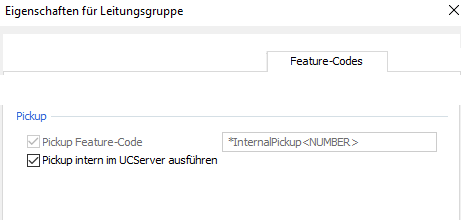
On the tab Feature Codes, you can configure how a call is picked up.
Pickup via UCServer
(ab ProCall Enterprise V 8.3)
In the Pickup section, we recommend leaving the setting set to Execute pickup internally in the UCServer.
This means that the UCServer itself handles the retrieval of a call, which results in improved functionality and does not require call group management within the PBX.
Example screenshot: Properties for line group – Feature codes – Configure pickup
Pickup via feature code
Alternatively, you can have the telephone system handle the forwarding of calls.
To do this, you must enter the speed dial code applicable to the Unify OpenScape Business telephone system under Pickup – Pickup Feature Code.
The extension from which the call is to be retrieved is specified as a variable using <NUMBER>, for example with the string *59<NUMBER>. However, the speed dial code *59 may be configured differently on the system to be connected.
For further information on feature codes, please also refer to Configuring advanced functions for SIP lines using feature codes: call forwarding or call pickup.
Version note
As estos has no influence over the manufacturer’s further development of the supported telephone systems, we cannot guarantee that the instructions described above will remain fully valid for future releases.
Further information
Supported telephony features for ProCall Enterprise when used with Unify OpenScape Business