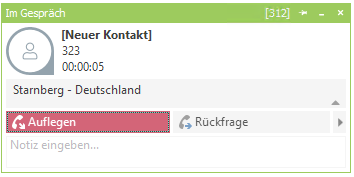
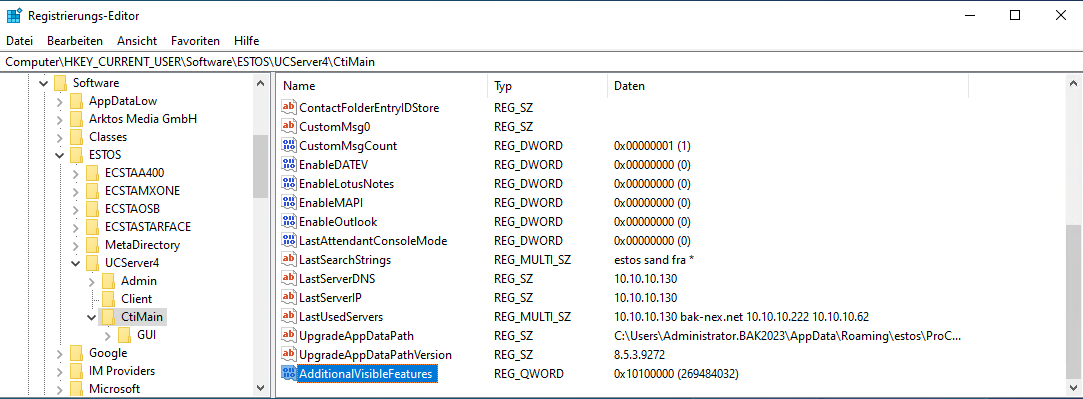
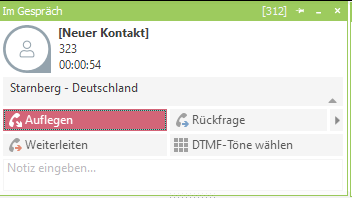
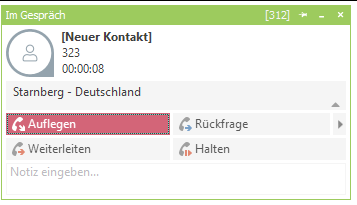
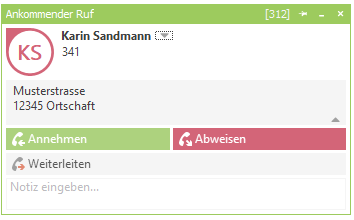
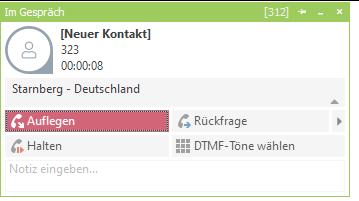
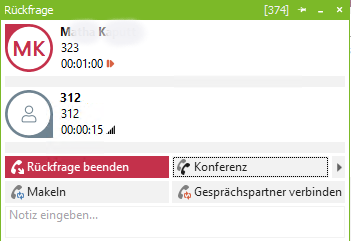
Knowledgebase ProCall Enterprise Current: Extend conversation window with additional buttons Extend conversation window with additional buttons State of knowledge May 2026ProCall 8 Enterprise as of 8.6.3ProCall Desktop for Windows By default, the "Hang up" and "Enquiry " buttons are displayed in the ProCall call window after the call has been accepted.Example screenshot: ProCall call window for an incoming call - standard with the buttons for hang up or initiate enquiry callShow additional buttons via registry entry AdditionalVisibleFeaturesAs of ProCall version 8.6.3, an additional line with buttons can be displayed and defined in the call window.The value for the desired combination must be entered in the registry on the workstations:TypeValuesVersion information/NotesPathHKEY_CURRENT_USER\Software\ESTOS\UCServer4\CtiMainTypeQWORDPlease note: do not enter this as type DWORD After changing the QWORD value, you have to restart ProCall Desktop for Windows for the change to take effect. NameAdditionalVisibleFeaturesHexadecimal value10000000Dial DTMF tones7000Hold100000Forward80000Connect callersFrom ProCall 8 version 8.10.0Für die gewünschte Kombination der Buttons müssen die Werte addiert werden:TypeValuesVersion information/NotesHexadecimal value10100000Forward and dial DTMF tones107000Forward and Hold10007000Dial DTMF tones and Hold180000Forward and connect callers From ProCall 8 version 8.10.0Example registry entry in the registry editor under Software - estos- UCServer4 - CtiMain - Name "AdditionalVisibleFeatures"Options for extending the call windowForward and dial DTMF tones via value: 10100000Forward and hold above value: 107000 If the telephone system supports the "Forward" option during the signalling of an incoming call, this option is also displayed as a button. Dial DTMF tones and hold via value: 10007000Consultation call and connect the caller via value: 80000(available from version 8.10.0) Once the call has been successfully connected, the "Connect call partner" button appears.Further informationConfigure and customize call window