| Last updated | January 2026 |
|---|
| Product relevance | estos ProCall 8 Enterprise ProCall Desktop for macOS |
|---|
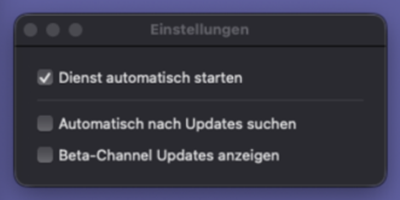
In the Settings of ProCall Desktop for macOS, the option Start service automatically is available and activated, but is not taken into account.
Although this option is enabled by the user, ProCall Desktop for macOS does not start automatically when the Apple macOS operating system is launched or when the user session is logged in again.
There are two common and reliable ways to declare ProCall Desktop for macOS as an autostart application.
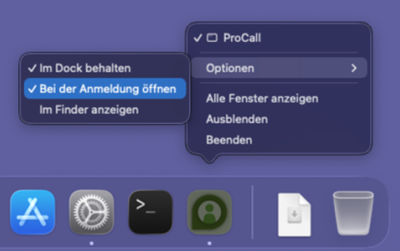
In the context menu of the application, select the item Options and activate the option Open on login:
Example screenshot of ProCall Desktop for macOS: "Open on login" options
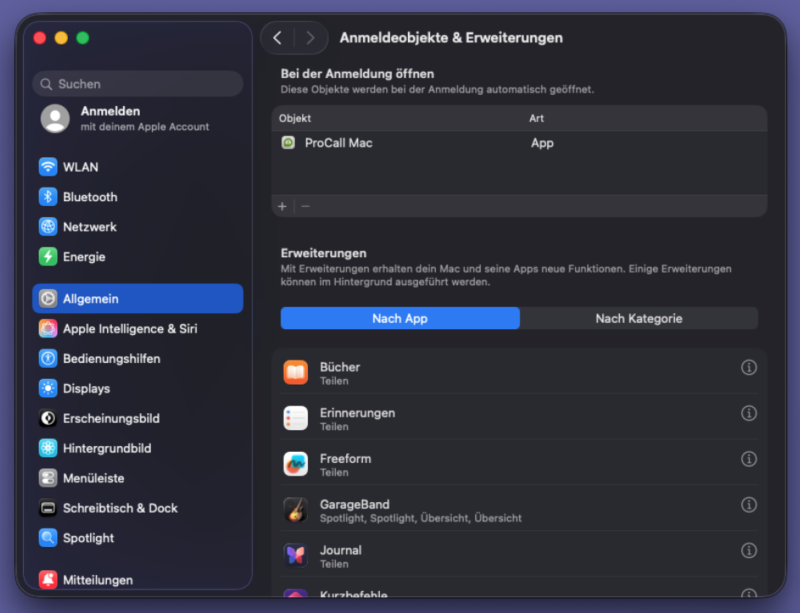
In Apple macOS System Preferences, select the Configuration section General and then Login Items & Extensions. Now add the Application ProCall Mac to the Open at login item list.