Replicator for HCL Domino – Sample configuration of the REST API
April 2026
MetaDirectory 6 Enterprise from version 6.4 onwards with Replicator for HCL Domino

Tested with/approved for:
- HCL Domino 12.0.2 with Domino REST API version 1.1.7
- HCL Domino 14.x.x with Domino REST API version 1.1.6 or later

Interface for replicating contact data
Using the "Replicator for HCL Domino", estos MetaDirectory can replicate contact data directly from the HCL Domino server's databases.
To connect the estos MetaDirectory to an HCL Domino system, the Domino REST API must be installed and configured on the HCL Domino server.
The setup must be adapted to the specific customer environment.

Preparation
The Domino REST API must be installed and configured on the HCL Domino server.
External link to third-party documentation
You can find the installation guide for the Domino REST API for Linux and Windows on the manufacturer’s website:
https://opensource.hcltechsw.com/Domino-rest-api/tutorial/installconfig/install/index.html
Once the REST API has been successfully installed, it can be configured to allow access from MetaDirectory and to replicate the required data.
Setting up the REST API for estos MetaDirectory
Database management

For the desired database, a structured view "Domino View" must be available, in which the fields to be replicated are defined and presented in a structured format.
Open a browser and enter the URL for the Management Console, then log in as a Domino administrator .
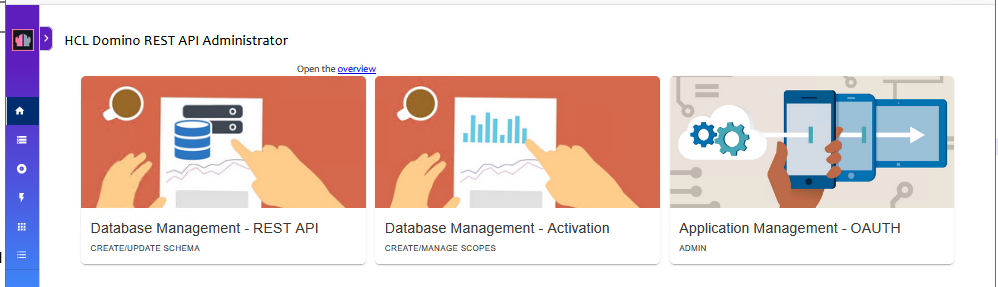
Open "Database Management - REST API"
Example screenshot of the HCL Domino REST API Administrator - Database Management
Create a new schema
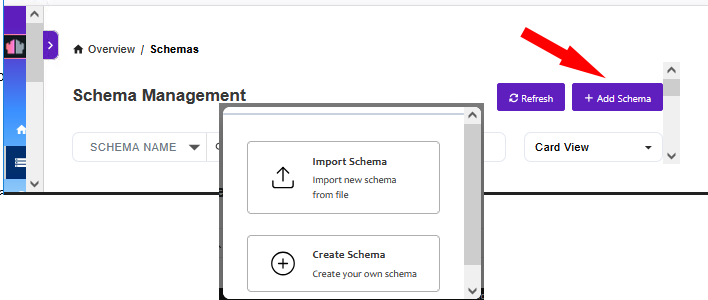
Add a new schema and select "Create Schema".
Example screenshot: HCL Domino REST API Administrator – Overview – Schemas – Add Schema
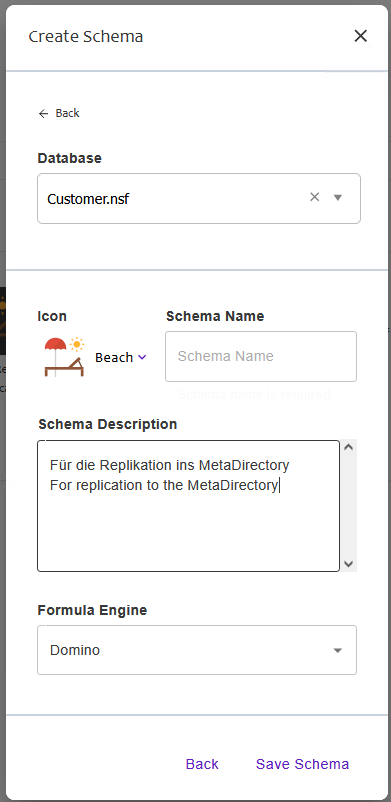
Select the database containing the data to be replicated and assign a "Schema Name".
Example screenshot: Select database – Create schema – Schema name
Save the schema.
Add scope
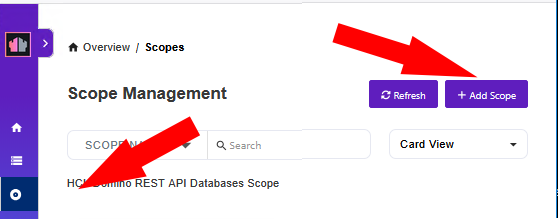
Go to the "Scope" menu and create a new scope.
Beispiel Screenshot Scope Management HCL Domino REST API Databases Scope - Add Scope
Wählen Sie in der gewünschten Datenbank die entsprechende View aus.
Vergeben Sie einen Namen und geben Sie eine Beschreibung an.
Beispiel Screenshot: Neuer Scope - Schema: metareplikator - Scope Name - Description - Add
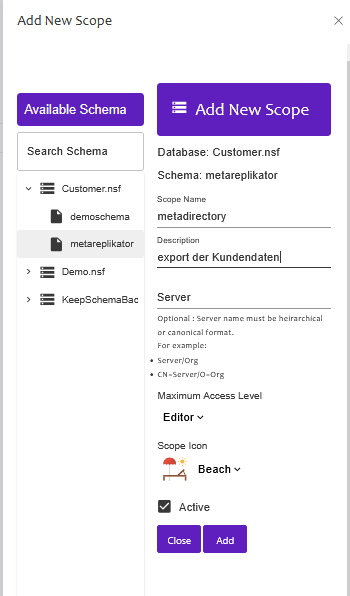
Save the configuration by adding the scope using "Add".
Schema Management - Configuration
Go back to the Overview and open your Configuration.
Example screenshot Schema - Schema Management - metareplikator
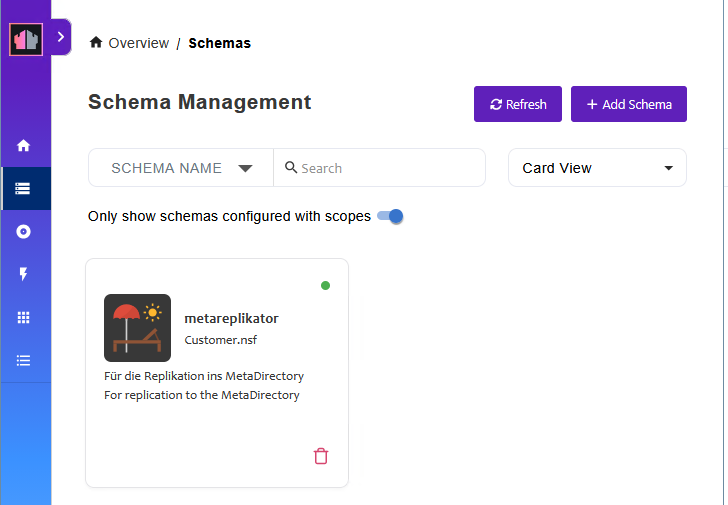
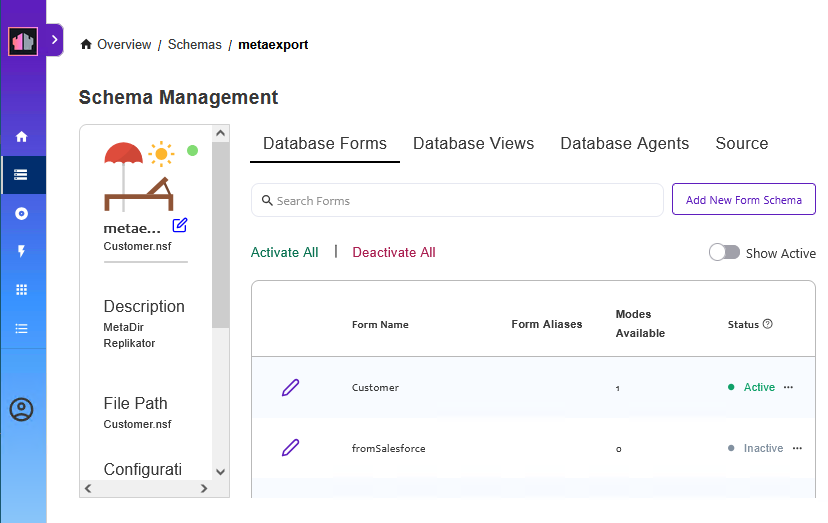
To enable general access to the database, enable it under "Database Forms".
Example Screenshot Schema Management - Overview - Schemas - metaexport - Database Forms - Activate All
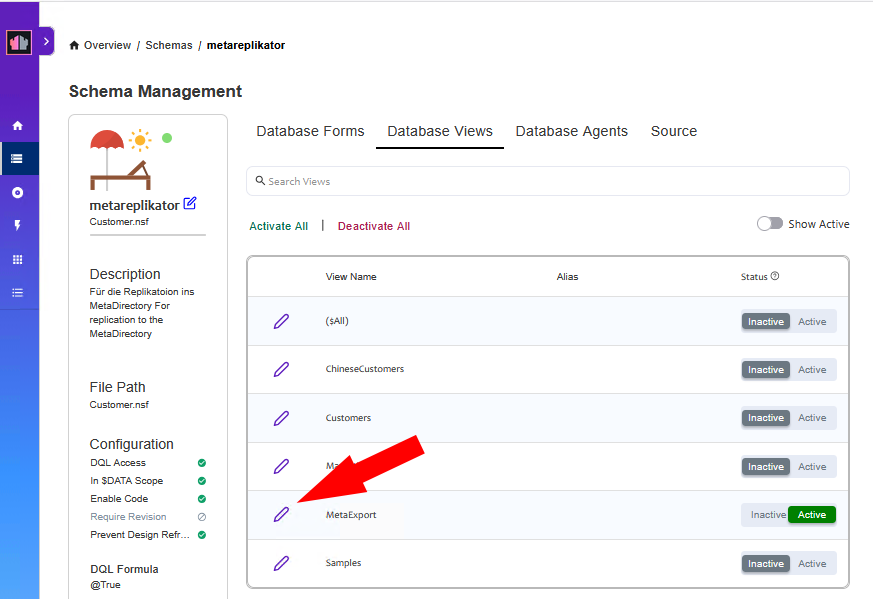
Enable the "View" database view
Select the "Database Views" tab, select the desired view and open it.
Example Screenshot Overview - Schemas - metareplikator - Database Views - Active
Mapping of fields/column headings
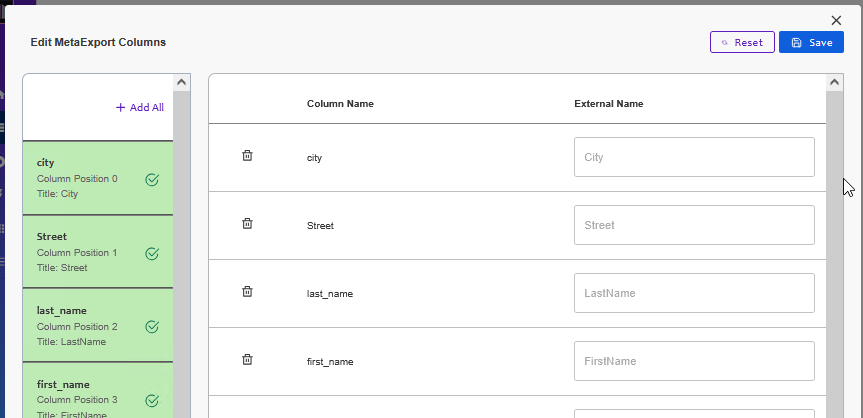
Add all the columns you want. If necessary, you can change the column headings. These are displayed in the replicator for field mapping.
Example screenshot – Edit MetaExport Columns – Column Name – External Name – Field mapping
Save/finalise REST API configuration
Save the configuration.
The REST API setup is complete.
Setting up the replicator in estos MetaDirectory
Once the Domino REST API has been configured, the replicator can be set up in MetaDirectory.
Replicator settings: HCL Domino data source
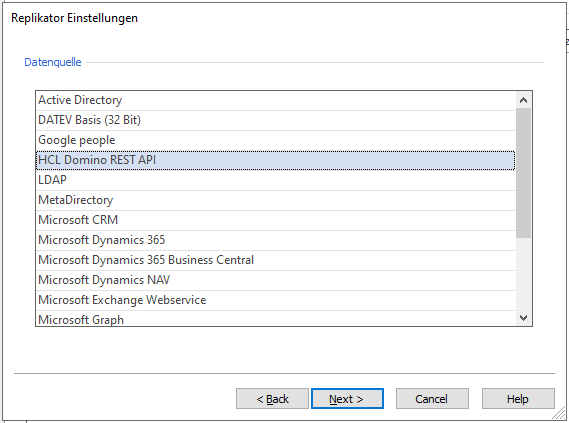
Select the "HCL Domino REST API" replicator.
Example screenshot: MetaDirectory Administration – Replicator Settings – Data Source – Select HCL Domino
Login details
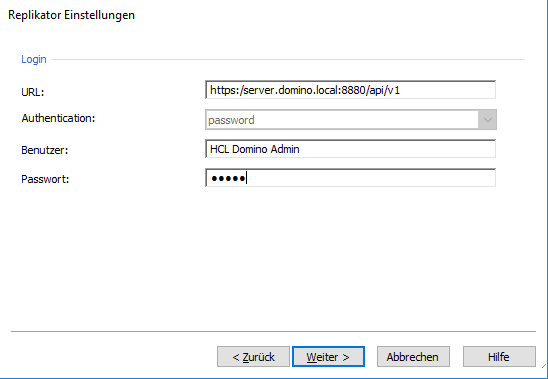
Enter the connection and login details for your HCL Domino system.
The URL must be entered in the format "https://Server FQDN:Port/api/v1".
Examples:
https://domino.firma.net:8880/api/v1
http://localhost:8880/api/v1
Example screenshot: MetaDirectory Administration – Replicator Settings – Login via URL, authentication method, username and password
Select schema and view
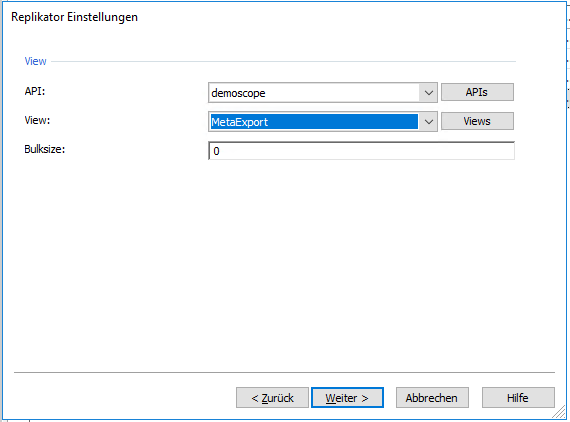
Next, select the schema (API) created in the REST API and then the required view.
Example screenshot: MetaDirectory Administration – Replicator Settings – View via API, View and Bulksize
Field mapping and optional rules
Follow the remaining steps in accordance with the known configuration, map the fields and, if necessary, define any optional rules.
Finalise, run replication and check the import
Once the replicator setup is complete, you can run the replication and check the import via the "Database Search" menu option.
Further information
HCL Domino (formerly IBM Notes/Domino, formerly Lotus Notes/Domino) is a registered trademark of HCL Technologies Ltd.
The following applies: estos guidelines for the support of third-party products – interoperability information.