Softphone conference with more than three participants - setting up and using the conference server
July 2026 PREVIEW!
ProCall Infinity (DataCenter) from 2410.0

Preview!
The conference server feature is available as a preview version. There are still limitations in terms of functionality and quality. We are continuously working on further development.
It has only been tested in conjunction with a Mitel MiVoice MX-ONE and SIP Extension connection (SIP subscriber registration, individual registration) .
The information provided here is still provisional and is constantly being updated.

System requiremenets
This feature is currently only available in conjunction with ProCall Infinity (DataCenter) >= 2410.0 and the use of the corresponding ProCall Desktop for Windows.

Instead of a single global conference server, multiple conference servers with their own locations and lines can be configured. When a moderator starts a conference, the UCServer automatically selects the appropriate conference server based on the location of their line. Each conference server can be activated individually and has its own setting to determine whether the conference ends automatically when the moderator leaves. Administration is carried out conveniently via a new wizard in the UCServer administration interface. Existing configurations are automatically carried over.
How the conference server works
The ProCall conference server enables softphone conferences with three or more participants. Once the conference server is activated, all conferences (= 1:n softphone calls) are set up on the server. When a ProCall client initiates a conference, a conference room is created on the conference server. The participants are connected to this conference room by the UCServer via ‘blind transfer’. The total number of participants on the conference server is limited by the number of ‘simultaneously used voice channels’ allocated to the conference server.
If fewer than three free voice channels are available at the start, the conference will be set up as a 3-way conference on the ProCall Desktop Client. It is then not possible to add further participants at a later stage.
Requirements
- ProCall Infinity (DataCentre) with ProCall Softphone and, optionally, ProCall Web (Preview)
- SIP lines on the UCServer, created via lines or SIP softphone lines (individual registration or SIP trunk).
The number of channels available in each case depends on the settings in the telephone system.
TAPI lines (lines via TSP) cannot be used. - The telephone numbers must be accessible internally; external accessibility is not required.
- Only lines that are not assigned to any user may be allocated to the conference server.
-
Processing power from the UC MediaServer service is required for conferences.
Setting up the conference server
Configuring the conference server - Global settings
Activate
Navigieren Sie in der UCServer Verwaltung zu Telefonie > Konferenzserver.
- Enable conference server – Enables the central conference server function. At least one conference server with at least one line must be configured.
- End conference when the moderator hangs up (after 30 seconds) – Sets the default behaviour for newly created conference servers. If you change this option, you can apply the setting to all existing conference servers.
Settings for ending the conference
Specify how the conference should be ended :
| when the presenter hangs up (after 30 seconds) |
| when the last participant hangs up and leaves the conference call. |


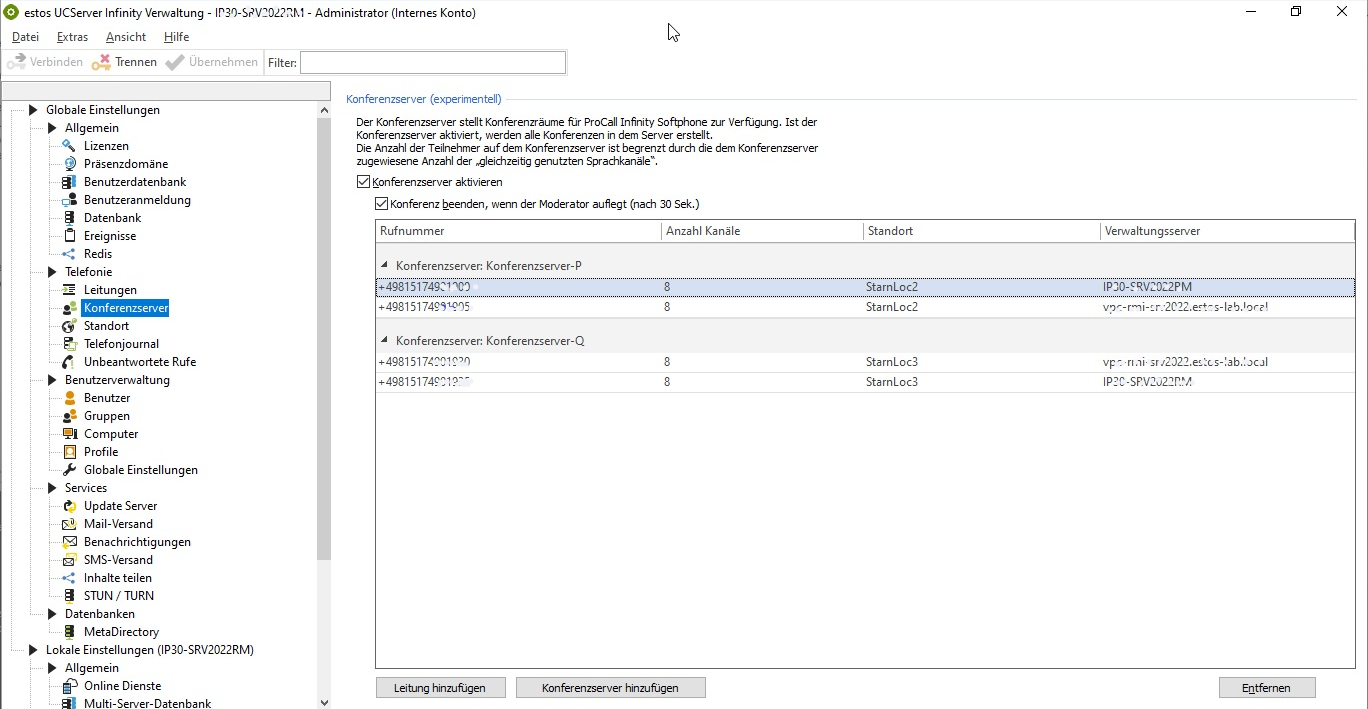
Example screenshot: UCServer Administration – Global Settings – Telephony – Conference Server – Enable Conference
Conference server
Several conference servers can be operated in parallel.
Each conference server has a unique name and groups the associated lines in the list. When a conference is started, the UCServer selects the appropriate conference server based on the location of the user’s line.
The columns in the list have the following meanings:
| Conference server | Telephone number | Number of channels | Location | Management server |
|---|---|---|---|---|
| Conference server name (group line) | SIP line assigned to this conference server | Voice channels that can be used simultaneously on this line (can be changed directly in the list) | Locations where this conference server may be used. They must correspond to the user’s telephone line used to start the conference (moderator’s telephone number). | In multi-server environments, the UCServer responsible for management |
Add a conference server - Add a line
Use Add conference server to create a new conference server.
Use Add line you can expand the selected conference server.
Double-clicking on a conference server opens the editing wizard.
You can manage conference servers and lines via the context menu.
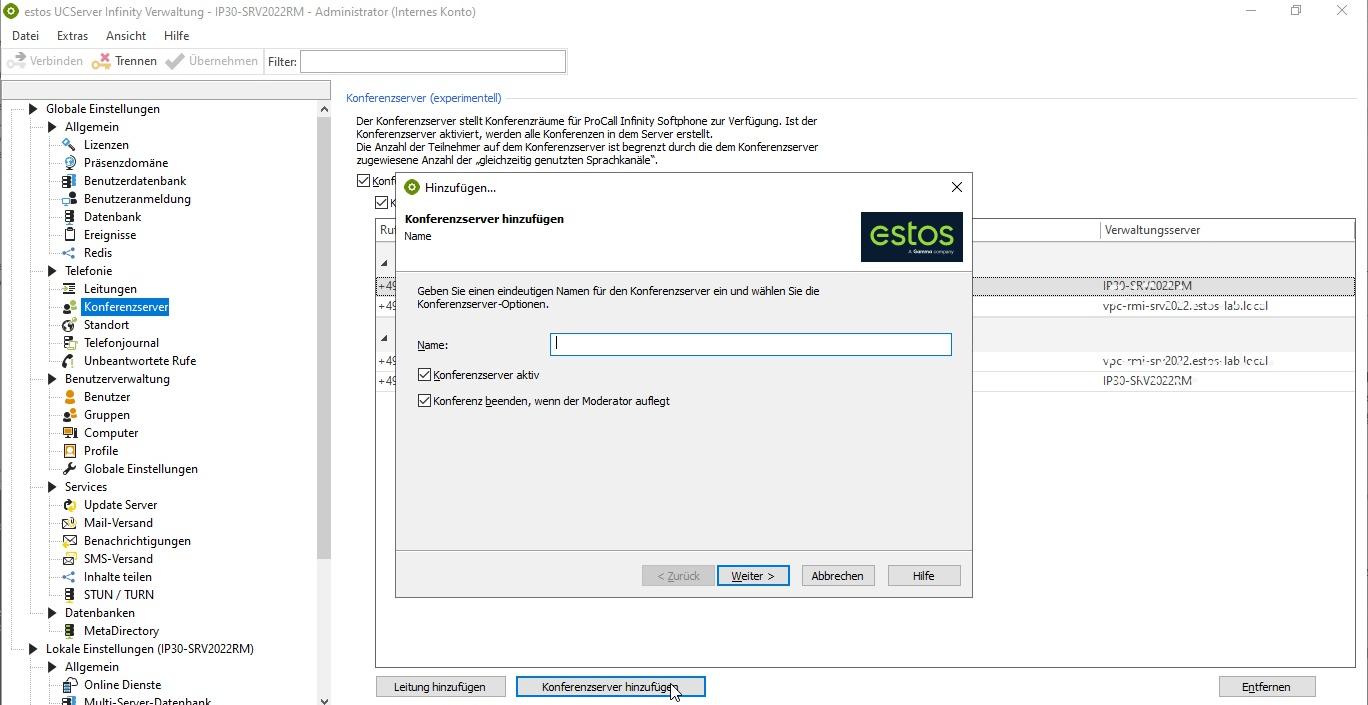
Managing conference servers – naming them, activating them and specifying how a conference is ended
- Name – Unique name of the conference server.
- Conference server active – Enables or disables this conference server
- End the conference when the moderator hangs up – Ends the conference 30 seconds after the moderator hangs up, if enabled.
Example screenshot: UCServer Administration – Global Settings – Telephony – Conference Server – Add... – Name
Manage conference servers - Locations
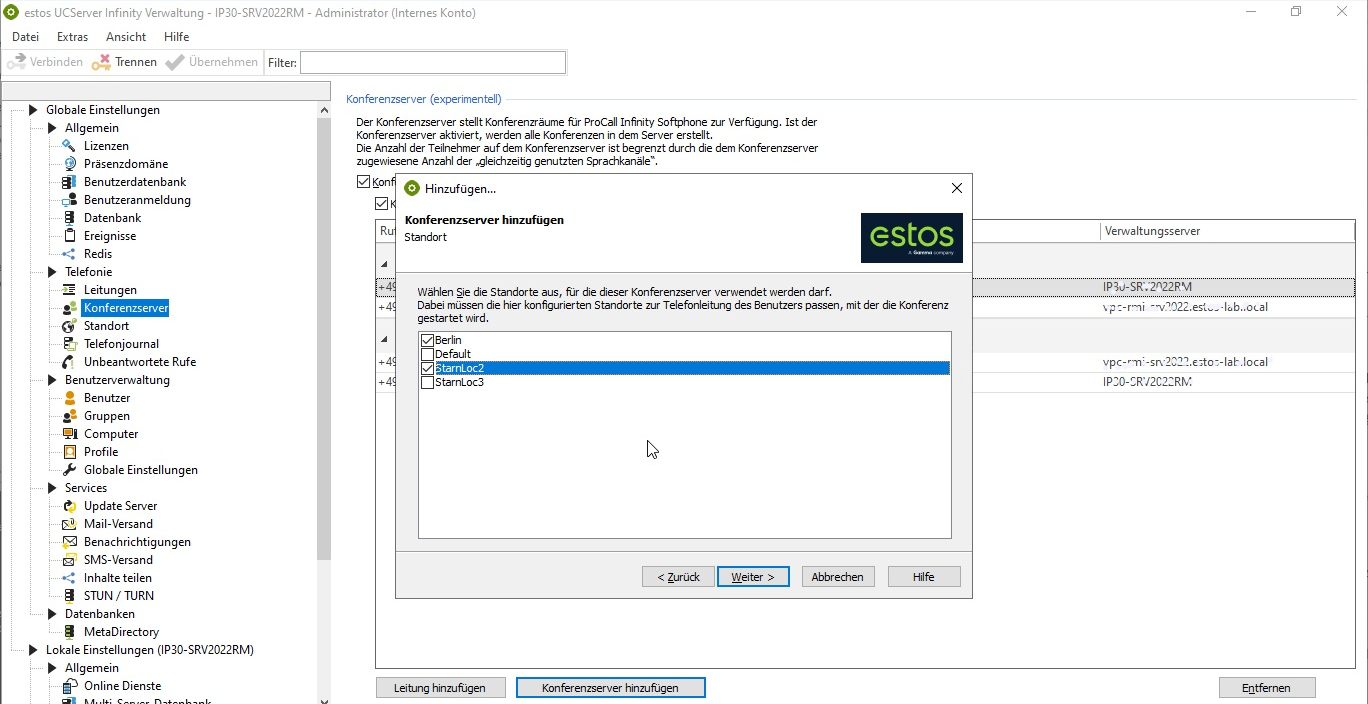
Select the locations for which this conference server may be used. The configured locations must correspond to the user’s telephone line from which the conference is initiated. A location must not be assigned to more than one conference server at the same time.
Example screenshot: UCServer Administration – Global Settings – Telephony – Conference Server – Add... – Location
Managing conference servers – Lines
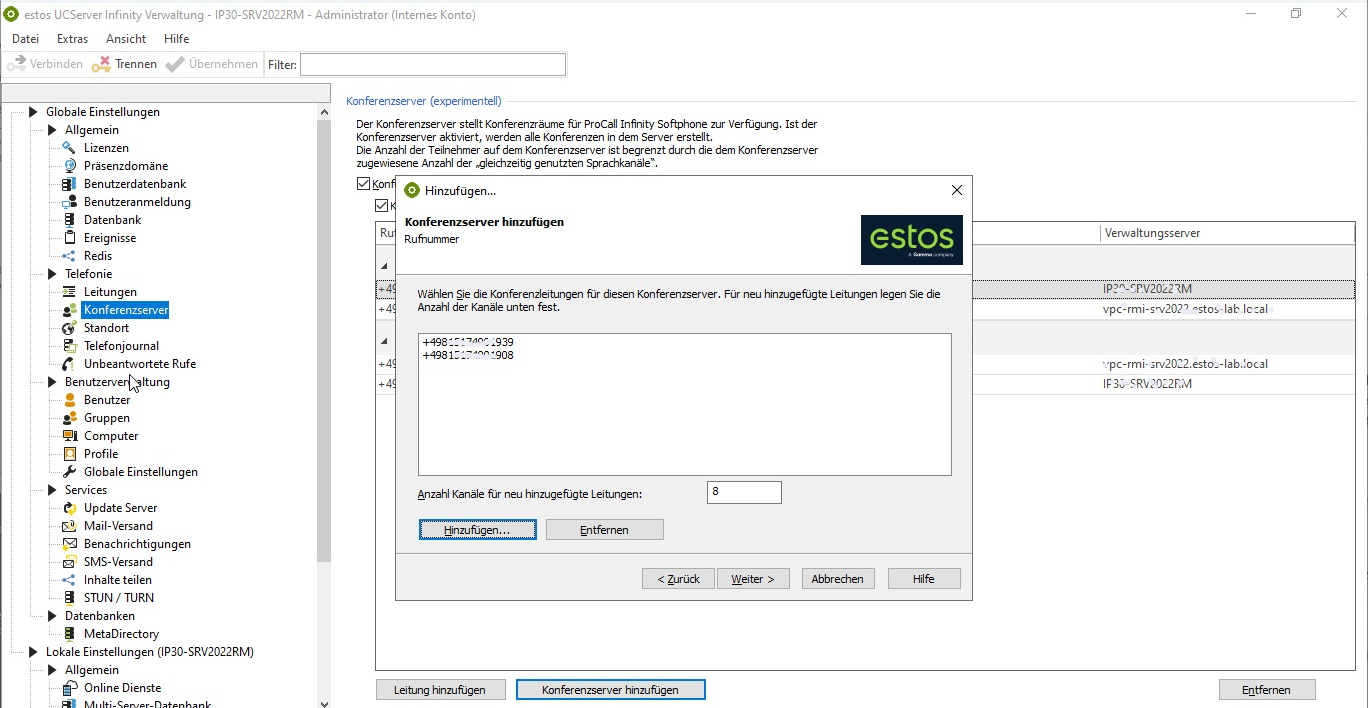
Select the SIP lines for this conference server.
The number of channels for the new lines can be adjusted as required.
Example screenshot: UCServer Administration – Global Settings – Telephony – Conference Server – Add... – Phone number
Managing the conference server – Checking details and summary
Check the name, options, locations and lines before completing the wizard by clicking Finish .
In our configuration example
The newly added conference server serves conference moderators with the telephony locations Berlin and Default. If the moderators are logged in to the upper management server, the conference rooms are created on extension 939. If the moderators are logged in to the lower management server, the conference rooms are started on extension 908.
When assigning the telephone number, you must specify how many voice channels are available on the line.
Any number of SIP trunks or individual lines can be allocated, provided that system performance allows. The total number of available voice channels is then made available to the conference server; these are dynamically distributed across the conference rooms and lines currently in use.
Use in ProCall
Softphone conferencing in ProCall Desktop for Windows and ProCall Web (Preview)
If the conference server is enabled, during an ongoing call additional participants can be added .
The conference room is created automatically.
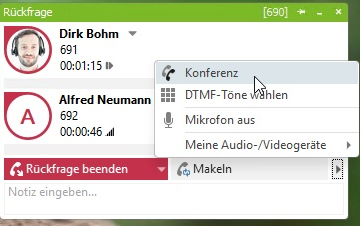
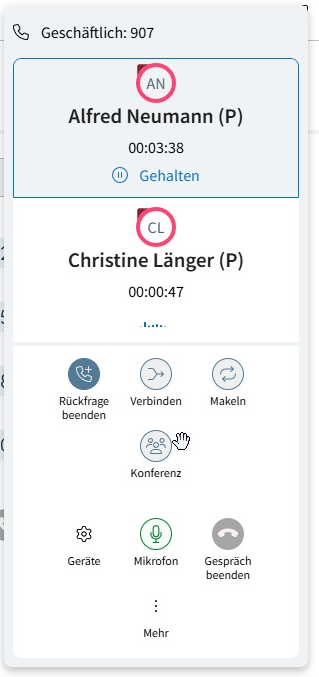
Start a conference from a follow-up enquiry
In the conversation window, start a conference as usual from within a callback (using the Conference button).
Example screenshot: ProCall call window – Callback – Conference
| ProCall Desktop for Windows | ProCall Web (Preview) |
|---|---|
|
Moderator view
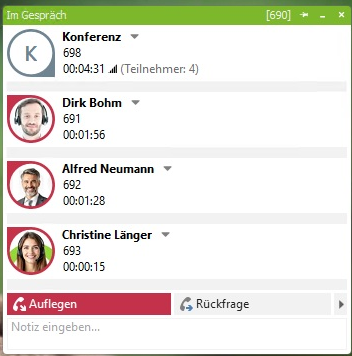
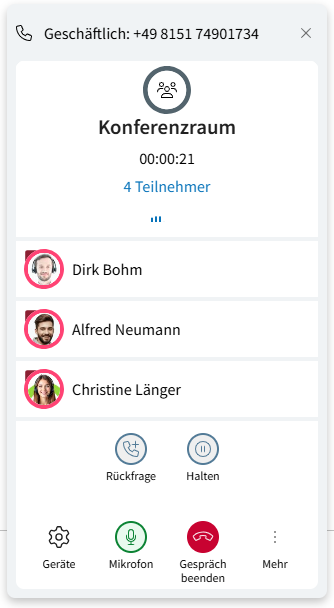
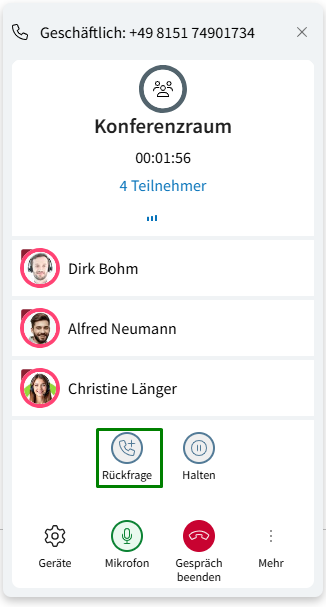
The conference organiser (moderator) is provided with their own chat window for the automatically created conference room. The current number of participants is displayed in this window.
Sample screenshot: ProCall moderator view – The automatically created conference room, showing the number of participants, is displayed
| ProCall Desktop for Windows | ProCall Web (Preview) |
|---|---|
|
|
Add conference participants
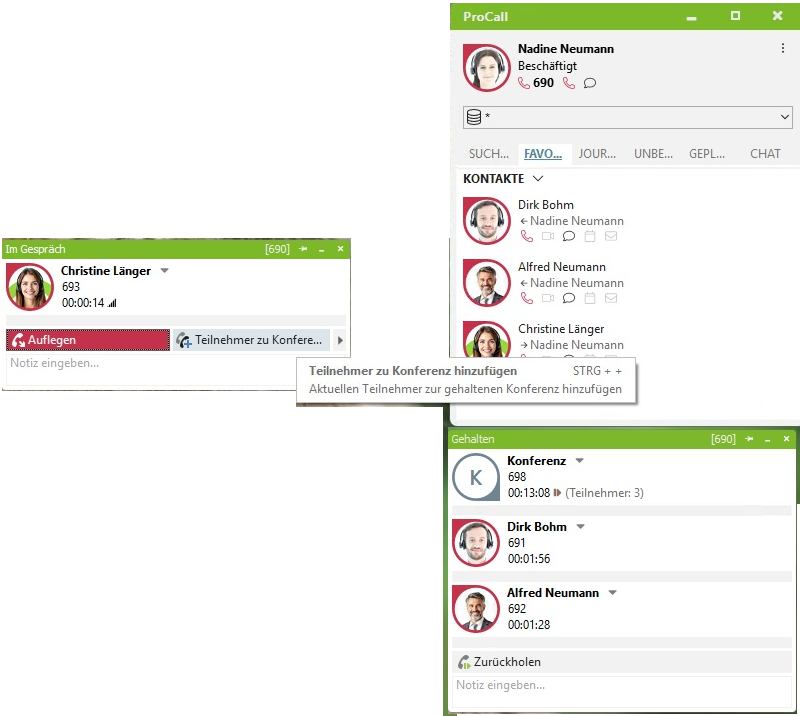
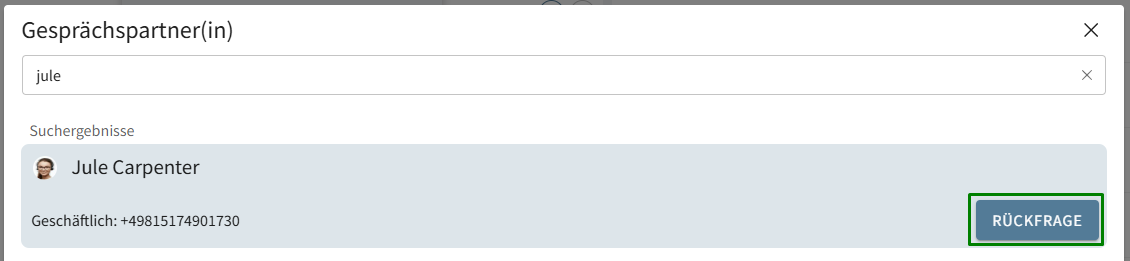
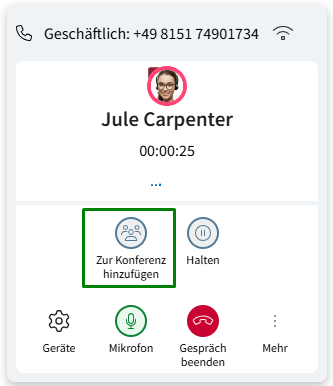
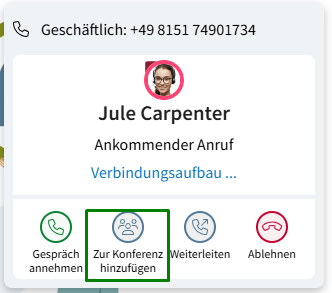
The moderator can call additional participants via a parallel call from within the ProCall window and then add them to the conference. An incoming call can also be added to the ongoing conference.
Screenshot example: ProCall conference in the call window – call a new participant and then add them to the conference room
| ProCall Desktop for Windows | ProCall Web (Preview) |
|---|---|
| Option 1: Add participants to the conference via a parallel call
Option 2: Add an incoming call to the conference
|
End conference
Depending on the settings on the conference server, the conference will be ended:
- after 30 seconds, if the moderator has left the conference.
or - the last participant has hung up and left the conference call.