FAQ Questions and answers about estos MetaDirector
| Last updated | October 2026 |
|---|---|
| Product relevance | these MetaDirectory 6 |
estos MetaDirectory 6 Update
Can estos MetaDirectory 6 be updated to the latest version if the software maintenance contract has expired?
No, it is not possible to update estos MetaDirectory 6 within the main version if the software maintenance contract (SPV) is no longer valid.
When updating with the latest installation package, UCConnect uses ServerID to check the licence and term of the software maintenance contract.
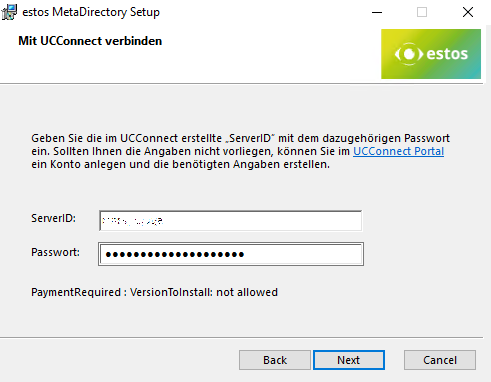
If the agreement is not active (invalid, expired, terminated, cancelled or blocked), the update is aborted with an error message: "PaymentRequired: VersionToInstall: not allowed".
Example screenshot of MetaDirectory Setup - error message PaymentRequired: VersionToInstall: not allowed
estos MetaDirectory Datenbankmanagement
How can the data sets stored in estos MetaDirectory be (temporarily) removed?
Procedure
For the purposes of verification or analysis, it may be advisable or necessary to remove all data stored in estos MetaDirectory.
To do this, the following procedure can be followed:
- Stop the estos MetaDirectory service via Microsoft Services Manager.
- Open the directory C:\Program Files\estos\MetaDirectory\databases in Microsoft Windows File Explorer (if the application was installed in the default directory)
- Move the files contained therein to a backup folder of your choice:
- datasourcedb.db (MetaDirectory database for managing replication data)
- metadatabase.db (actual database file containing user data)
- metadatabase.db-shm (shared memory index file)
- metadatabase.db-wal (write-ahead log file)
- Start the service estos MetaDirectory via Microsoft Services Manager.
- The four database files listed above are automatically reinitialised or created as empty files in the folder C:\Program Files\estos\MetaDirectory\databases (if the application is installed in the default directory).

In order to restore the original data set and regain access to the backed-up data, the backed-up database files are restored from the backup:
- Stop the estos MetaDirectory service via Microsoft Services Manager.
- Open the directory C:\Program Files\estos\MetaDirectory\databases in Microsoft Windows File Explorer (if the application was installed in the default directory).
- Copy the files in the backup folder to the folder databases; if necessary, replace or overwrite the existing files in the process:
- datasourcedb.db
- metadatabase.db
- metadatabase.db-shm
- metadatabase.db-wal
- Start the estos MetaDirectory service via Microsoft Services Manager.