UCServers and UC MediaServers on distributed systems/separate machines
| State of knowledge | March 2026 |
|---|---|
| Relevant for | ProCall Infinity (DataCenter) |
To ensure reliability and scalability even for large softphone environments are achieved, the installation and configuration of dedicated estos UC MediaServer services (on a separate, different system from the UCServer) described.

Best Practice
The procedure described here requires knowledge of and compliance with the ProCall Infinity (DataCenter) system requirements, as well as detailed IT expertise in configuration and administration.
Introduction
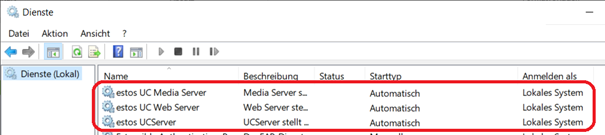
In terms of its basic structure, a ProCall Infinity (DataCenter) multi-server environment consists of three individual estos services:
- University of California Server
- Web server
- Media Server
SIP extensions and softphone features
In projects with a large number of SIP extensions that are to be equipped with ProCall softphone functions, an estos UCServer system may occasionally reach its technical limits in terms of scalability, as both the entire signalling and management, as well as the audio streaming of the UC MediaServer service, must be handled by a single Windows host.
Load balancing, scalability, reliability and availability
The UC MediaServer can optionally be offloaded to its own runtime environment, thereby enabling scaling of the UCServer system. Not only does this achieve a distribution of the processing load across more than one Windows host, but the RTP voice traffic—which is sensitive to delay and jitter—no longer competes on the network interface with the comparatively much larger data packets from the management interface.
Furthermore, it is possible to operate the estos UCServer with multiple UC MediaServers and thus achieve automatic load balancing of incoming and outgoing softphone calls using the Round Robin method. Should one of the connected UC MediaServers fail, this is automatically detected and a failover to the remaining UC MediaServers is performed for new calls.
Example diagram: UCServer with multiple MediaServers
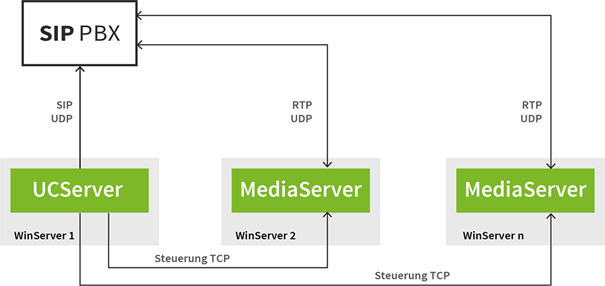
As soon as an estos UC MediaServer that was previously unavailable resumes normal operation, it will automatically be addressed and utilised by the estos UCServer again; no further administrative action is required.

Im LAN
Please note that estos server components must only be deployed and operated within the same LAN. As no specific measures have been taken regarding routing, firewalls or NAT techniques in inter-process communication, unrestricted direct IPv4 communication must be ensured between estos server components operating on separate networks.
Installation
When a UCServer is installed in a multi-server environment, all three estos services (UCServer, UC Webserver, UC MediaServer) are always installed and activated.
Consequently, in addition to installing the UCServer, manual configuration steps must be taken to set up separate UCServers and UC MediaServers and connect them to one another. The estos UC WebServer service is always run alongside the UCServer service on the same host.
With reference to the diagram shown in the introduction, the desired target layout in the following example consists of running an estos UCServer on WinServer 1 and one or more UC MediaServers, running separately from the UCServer, on WinServer 2 through to WinServer n.
Software-Versionen
It is essential that the hosts are all running the same software version.
First host
On the first host installed in the standard configuration (here WinServer 1), on which the UCServer and UC WebServer are running, the two services estos UCServer and estos UC WebServer are set to Startup type: Automatic and the estos UC MediaServer is set to Startup type Disabled and stopped.
Other hosts
On the other hosts installed as standard with the UCServer installation package (here WinServer 2 to WinServer n), i.e. on the additional hosts intended for UC MediaServer, the two services estos UCServer and estos UC WebServer are disabled in Microsoft Windows Services and only the estos UC MediaServer is left with the Startup type Automatic.
Nach Updates
As the installation routines do not take these specific installation options into account and the service configuration is always reset to a standard installation, please ensure that you reconfigure the startup types in the Microsoft Windows Services Manager after installing an estos ProCall update.
Example of the distribution of estos server services
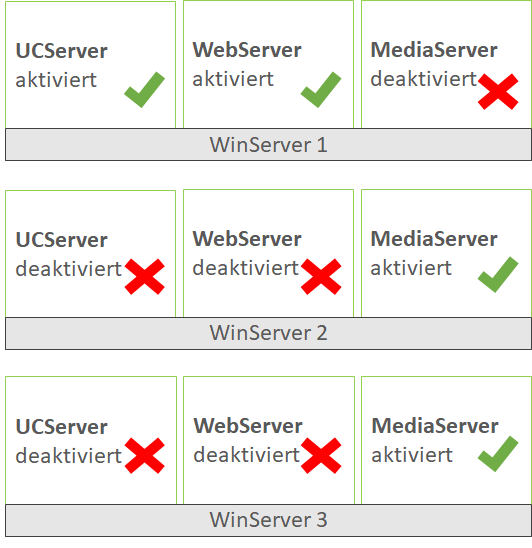
Example 1: Operating two remote UC MediaServers
Two remote UC MediaServers are in operation.
WinServer 1 performs only the control services,
WinServer 2 and WinServer 3 handle the audio streaming.
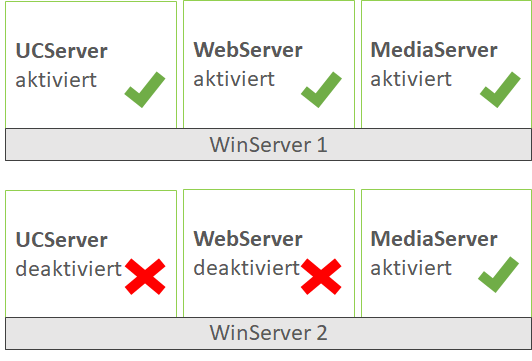
Example 2: additional host for streaming
In addition to a fully installed and operational host WinServer 1, a further host will be added for streaming purposes, with the UC MediaServer on host WinServer 2 relieving the load on the UC MediaServer on host WinServer 1.
Licensing
Only the UCServer on which users log in and where connections are established needs to be licensed. The remote media servers do not require a licence, as the UCServer installation was only used to install the media server. The UCServer (and web server) on those machines are disabled and do not perform any functions.
Configuration
Addressing the UC MediaServers
To be precise, it is the estos UC WebServer service—and not the estos UCServer service—that controls the estos UC MediaServer service. By default, the UC WebServer expects the estos UC MediaServer to be running at the IPv4 address 127.0.0.1 (i.e. its own local host), which is why the configuration file eucwebconfig.json (in the default directory C:\Program Files\estos\UCServer\config) must be adjusted accordingly on WinServer 1. In the section kurentoservers, the URL must be adjusted, i.e. the 127.0.0.1 must be replaced here with the IPv4 address of WinServer 2:
eucwebconfig.json
"kurentoservers" : [
   {
      "url" : "ws://<IPv4 des WinServer 2>:8888/kurento"
   }
],Incidentally, this could also be used to adjust any port changes made on the UC MediaServer side (default 8888), though this will not be discussed further here.
If WinServer 2 has, for example, the IPv4 address 10.21.3.11, the following setting applies to the eucwebconfig.json file on WinServer 1:
eucwebconfig.json
"kurentoservers" : [
   {
      "url" : "ws://10.21.3.11:8888/kurento"
   }
],Additional UC MediaServers are connected to the UC WebServer by specifying further URLs. Please ensure that the JSON syntax is followed exactly, including line breaks, commas and brackets:
eucwebconfig.json
"kurentoservers" : [
   {
      "url" : "ws://10.21.3.11:8888/kurento"
   },
   {
      "url": "ws://10.21.3.12:8888/kurento"
   }
],Please also ensure that any other filter parameters that may be present (in this case candkillipv6, candkilltcp and candonlyturn) in the URL sections remain unchanged:
eucwebconfig.json
"kurentoservers" : [
   {
      "url" : "ws://10.21.3.11:8888/kurento",
      "candkillipv6": 0,
      "candkilltcp": 0,
      "candonlyturn": 0
   }
],The configuration file eucwebconfig.json is a configuration file relevant to the UC WebServer. Manual changes to this file only take effect in the UC WebServer once the service has been restarted.
Enabling encryption
As communication between the UC WebServer and the UC MediaServer takes place over the network rather than via localhost when the estos UC MediaServer is running in standalone mode, it may be necessary for security reasons to enable encryption for this communication path. This is also done manually via the configuration file eucwebconfig.json.
To enable encrypted communication, the protocol handler in the URL parameter must be changed from WS to WSS changed and the TCP port from 8888 (standard WebSocket port) to 8433 (standard Secure WebSocket port) changed. In the basic installation, encryption is performed using the certificate defaultCertificate.pem (stored in the UC MediaServer directory C:\Program Files\estos\UCServer\MediaService\emswindows\etc\kurento).
Knowledge required
In order for a remotely operated estos UC MediaServer to accept encrypted connection requests, it must be manually reconfigured to encryption mode . This reconfiguration requires knowledge that is not covered in this description.If you require assistance with this procedure, please consult your designated support team.
Example of this reconfiguration
eucwebconfig.json: Deactivated encryption (Default)
"kurentoservers" : [
   {
      "url" : "ws://10.21.3.11:8888/kurento",
      "candkillipv6": 0,
      "candkilltcp": 0,
      "candonlyturn": 0
   }
],eucwebconfig.json: Activated encryption
"kurentoservers" : [
   {
      "url" : "wss://10.21.3.11:8433/kurento",
      "candkillipv6": 0,
      "candkilltcp": 0,
      "candonlyturn": 0
   }
],These manual changes to the configuration file eucwebconfig.json will only take effect once the UC WebServer service has been restarted.